
Sales Order Archive: Understanding the Workflow in Dynamics 365 Business Central
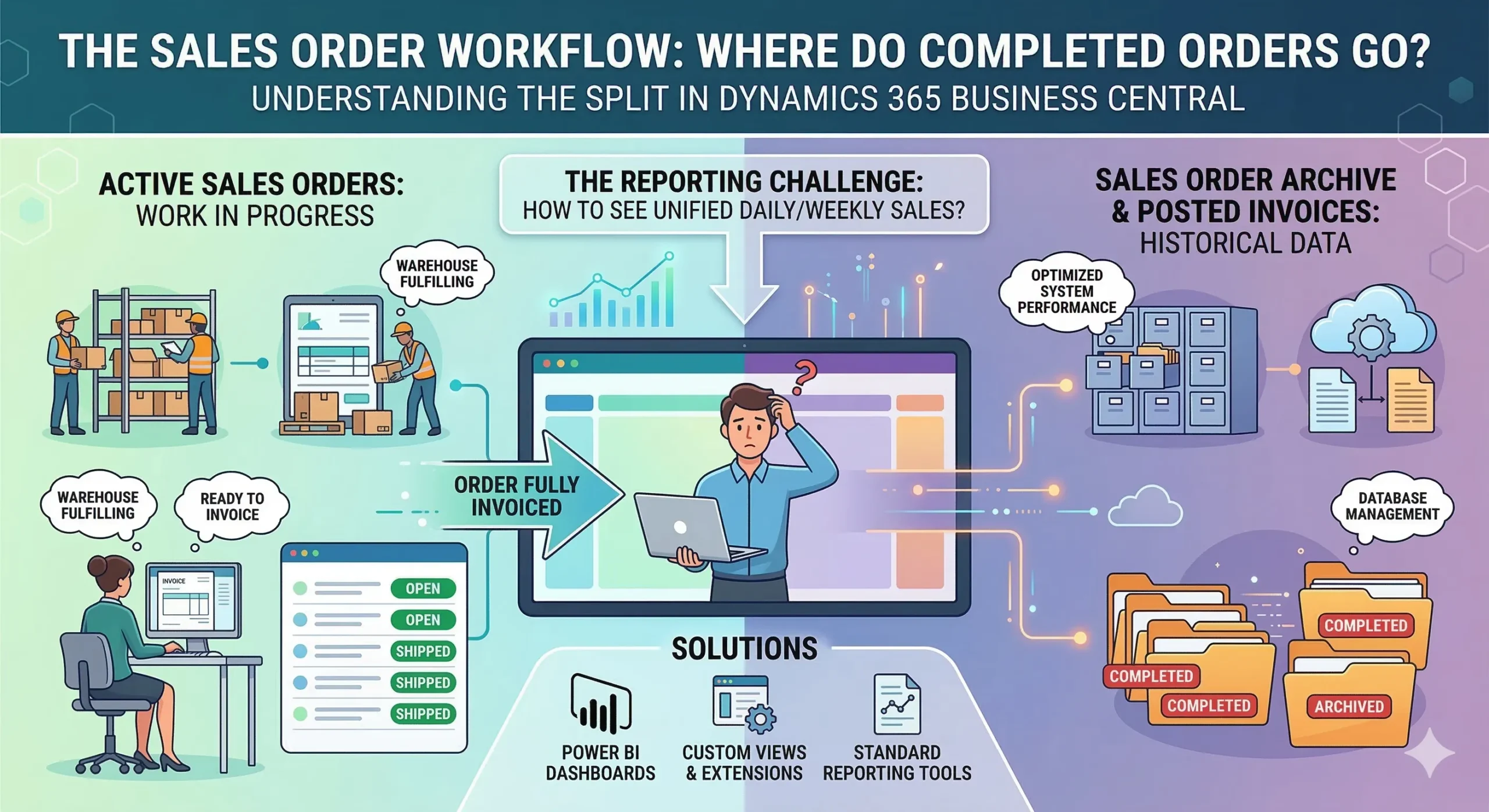
If you are trying to pull a unified daily report, the Sales Order Archive in Dynamics 365 Business Central might initially feel like an unexpected hurdle. I was reading a discussion on the Dynamics 365 Community forum recently that perfectly captured a common frustration for new users. Someone tasked with running daily and weekly sales reports realized that the main Sales Orders screen was only showing open or partially shipped orders. The moment an order was fully invoiced and completed, it vanished from the active view.
When they asked where the completed orders went, a forum Super User explained that the system automatically moves them out of the active list and into the archive. For a user who just wants a basic business report showing everything in one place, this split workflow feels like it demands way too much effort.
Why Completed Orders Disappear
When you are new to the Dynamics 365 ecosystem, it is completely natural to expect a single, unified list of all your transactions. However, Business Central operates on a specific logic designed to keep the system fast and the active workspace clean.
The Logic Behind the Disappearing Act
The active Sales Orders list is built strictly for work in progress. It is meant for the warehouse team fulfilling shipments, or the accounting team waiting to issue an invoice. Once an order is fully processed, Business Central assumes you no longer need it clogging up your daily to-do list.
Instead, the system moves that historical data into the Sales Order Archive or posts it to the Posted Sales Invoices ledger. While this is fantastic for system performance and database management, it creates a massive headache for a manager who needs to see an overarching view of both ongoing and completed sales for the week.
Bridging the Gap Between Open and Historical Data
So, how do you bridge the gap between active orders and the Sales Order Archive without spending hours manually combining Excel spreadsheets? You have a few realistic options to make your daily and weekly reporting much easier.
Standard Reporting Tools
Out of the box, Business Central doesn’t offer a single list page that casually merges active orders with archived or posted ones. However, you can use the built-in Customer Ledger Entries or standard sales reports to get a broader picture of revenue and order volume. It is not a perfect one-to-one replacement for a unified list view, but it provides the financial data you need without digging through the archives.
Leveraging Power BI for Custom Dashboards
If your reporting requires you to see everything at a glance—regardless of whether it sits in the active queue or the archive—your best bet is connecting Business Central to Power BI. By pulling data from both the open sales lines and the posted tables, you can build a custom dashboard. This eliminates the need to jump back and forth between different screens in your ERP system.
Relying on Saved Views and Extensions
If Power BI seems like overkill for your needs, check with your implementation partner about custom extensions. Many businesses request a simplified custom list or report that queries both active and archived tables simultaneously, giving managers exactly what they expect to see in a single click.
Embrace the System’s Intent
It is completely valid to feel frustrated when a seemingly basic business report requires extra steps. But understanding why Business Central relies on the Sales Order Archive is the first step to making peace with the software. It isn’t hiding your data to make your life difficult; it is keeping your active workspace optimized so your processing teams can work without distraction. By leaning on external reporting tools or custom queries, you can easily get the full visibility you need without fighting the core design of the system.