Page Personalization: Troubleshooting Unwanted Syncs in Business Central
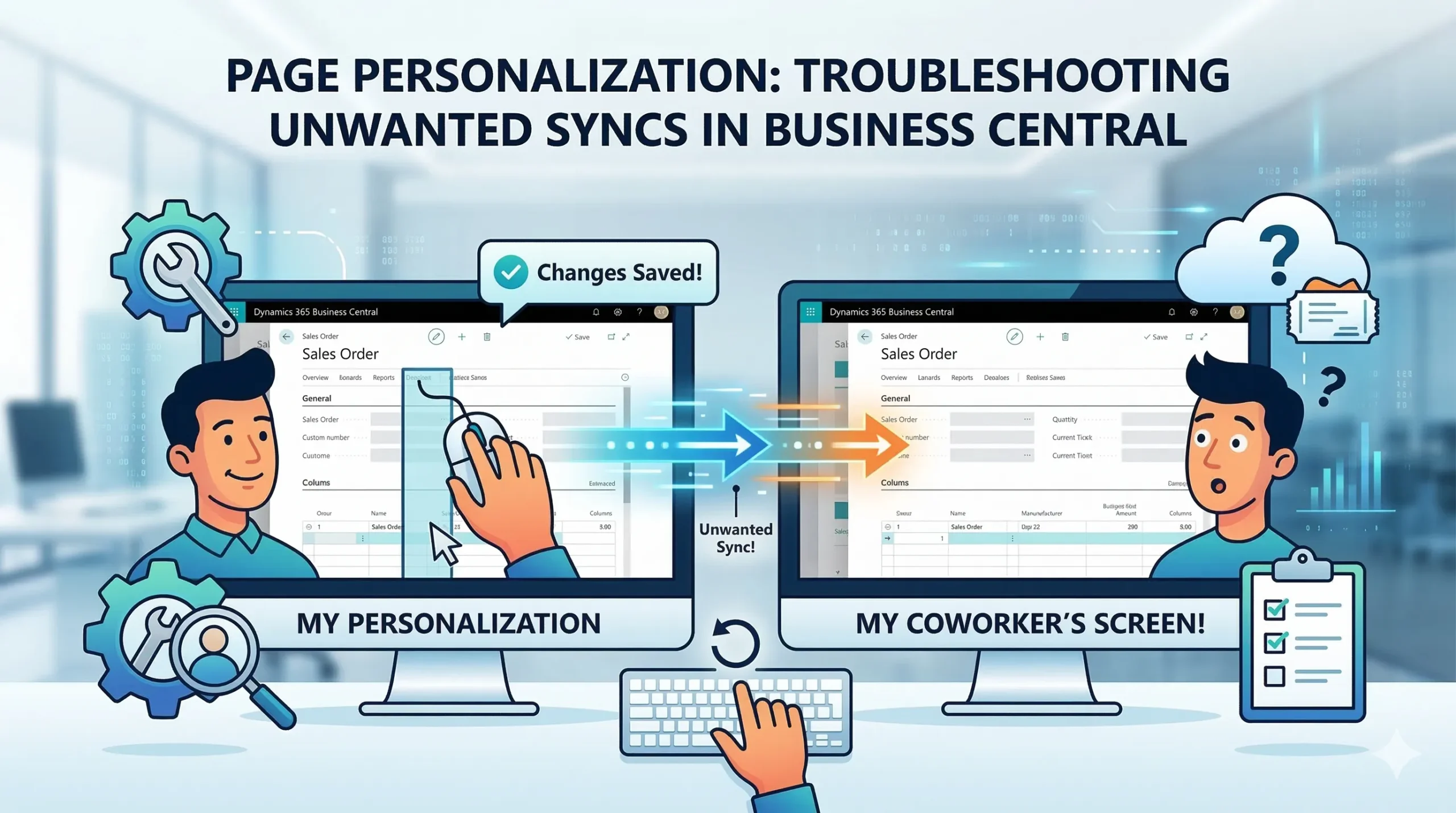
Page Personalization is supposed to be a purely individual experience, but what happens when your custom layout suddenly hijacks a coworker’s screen? Picture this: you are working inside Dynamics 365 Business Central (SaaS), and you decide to quickly change the column order on the Sales Order page. It is a simple tweak just to make your day-to-day data entry a bit smoother. But ten minutes later, a colleague pings you, completely confused because their screen just rearranged itself to match yours.
If you are scratching your head over this, you are not alone. Let us dive into why this layout bleed happens and how to troubleshoot it.
The Mystery of the Bleeding Layouts
Normally, adjusting your personal view in Business Central is isolated to your account. The platform is designed so that user A’s visual preferences do not impact user B. However, in this specific scenario, a supposedly local change is acting like a global Page Customization.
Ruling Out the Obvious
The first thing most admins check is whether the users share the exact same profile or role center. If they do, sometimes profile-level changes can get muddy, especially if someone accidentally used the Customize Pages feature instead of Personalize. But in our scenario, the users do not share the same profile, and there are absolutely no system-wide page customizations deployed. So, what gives?
How Does This Happen in Business Central SaaS?
When the standard rules of Business Central seem to break, we have to look at edge cases. Here are a few reasons why Page Personalization might sync unintentionally across different users.
1. Shared Workstations and Browser Caching
Are the users sharing a physical computer, a terminal server, or a browser profile? Business Central SaaS relies heavily on the browser’s local cache. If user A personalizes a page, logs out, and user B logs in on the exact same browser without clearing the cache or using a separate browser profile, the UI might render the cached personalized view. It is less of a backend database sync and more of a localized caching glitch.
2. Accidental Profile Customization
Even if you think you are doing a standard personalization, it is worth double-checking your permissions. If a user has the D365 PROFILE MGT permission set and clicks Customize instead of Personalize, they are altering the base profile. Even if you believe the users are on different profiles, it is possible the affected user was temporarily assigned to or inherited the customized profile.
3. Copying Profiles with Unintended Baggage
Did you recently create new user profiles by copying an existing one? If you copied a profile after someone made personalizations to it, those personalizations can sometimes get baked into the new profile as default views. This means any adjustments made before the split might still link back in weird ways, though a live sync after the fact is highly unusual.
Steps to Fix Cross-User Personalization Bleed
If you are dealing with this right now, here is a practical checklist to untangle the screens.
Step 1: Force a Hard Refresh
Have the affected user perform a hard refresh (Ctrl + F5) or log in via an incognito window. If the Sales Order page reverts to normal, you have just diagnosed a local browser caching issue, not a system-level bug.
Step 2: Check User Personalization in the Admin Center
Search for User Personalizations (using the trusty magnifying glass icon). Look for the specific page ID for the Sales Order page. You can see exactly who has personalizations saved for that page. If you see an entry for the user who supposedly did not make any changes, delete that record. This will force their view to revert to the system default.
Step 3: Inspect Page Customizations
Even if you are confident no global changes were made, verify it. Search for Page Customizations. If you see an entry here for the Sales Order page, someone accidentally made a global change. Delete it or modify it as needed.
Step 4: Submit a Support Ticket
If you have cleared the cache, verified profile assignments, wiped user personalizations, and the pages are still live-syncing across different profiles, you might be looking at a genuine tenant-level bug in the current SaaS build. Microsoft rolls out updates frequently, and occasionally, an update introduces a weird state-sharing bug. Open a ticket with Microsoft Support, detailing that changes are persisting across non-shared profiles.
Wrapping Up
Dealing with an unexpected sync of your Page Personalization can feel like you are chasing ghosts in the machine. By systematically ruling out caching issues, profile overlaps, and accidental global customizations, you can usually isolate the culprit quickly. Remember, the system is designed to keep your views private—so when it does not, trust that there is a logical (albeit hidden) setting or cache file at fault.