How to Connect Multiple Shopify Stores to Business Central
Managing Multiple Shopify Stores with Business Central Managing multiple Shopify stores becomes simple when you connect them to Business Central. You can control orders, inventory, and customers from one system while keeping all stores synced in real time.
 Learn how to connect multiple Shopify stores to Business Central with step-by-step guidance, benefits, setup options, and best practices for smooth integration. Running more than one Shopify store often creates confusion. Orders come from different places, stock gets mismatched, and financial data stays scattered. As your business grows, these issues become harder to manage and start affecting customer experience. Connecting Shopify stores with Business Central solves this problem by bringing everything into one system. It keeps your data accurate, updates inventory automatically, and ensures orders flow smoothly without manual effort. You can Connect Multiple Shopify Stores to Business Central this setup not only saves time but also helps you stay organized as you scale.
What Does Multi-Store Shopify Integration Mean?
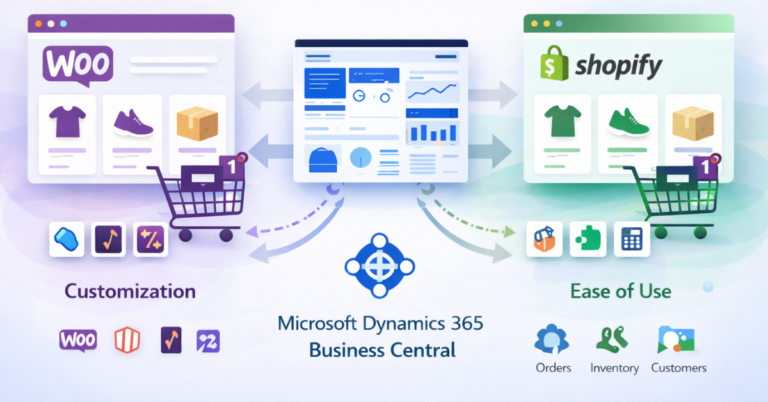
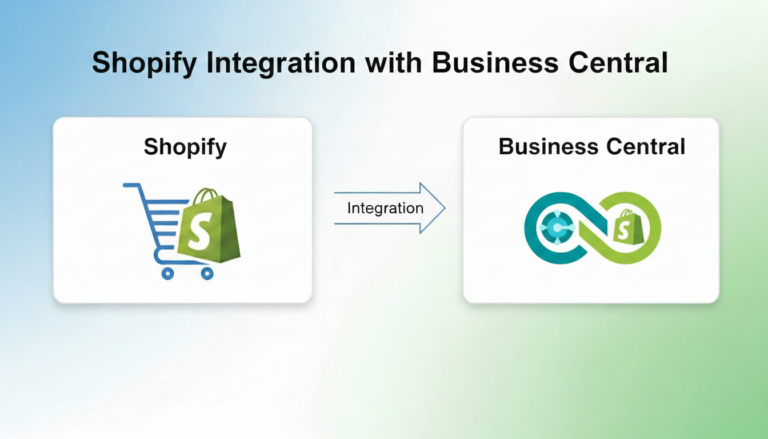
 Multi-store Shopify integration means connecting two or more Shopify stores to a single Business Central account. Instead of managing each store separately, all data flows into one place where you can control everything easily. Each store continues to operate independently, but Business Central acts as the central hub. It collects orders, updates inventory, and keeps customer records synced across all stores. This setup is especially useful for businesses handling different regions, brands, or sales models.
Why Businesses Run Multiple Shopify Stores
Many businesses don’t rely on just one store. There are practical reasons behind running multiple Shopify stores, especially when targeting different markets or audiences. Before getting into the technical setup, it helps to understand why this approach is so common.
- Different regions or currencies
- Separate brands or product lines
- B2B and B2C stores
- Market testing or niche targeting
Each of these reasons creates a need for better control, which is where integration with Business Central becomes important.
Benefits of Connecting Multiple Shopify Stores to Business Central
When you connect multiple shopify stores to business central, daily operations become much easier. Instead of juggling between platforms, everything stays organized in one place. This setup doesn’t just improve efficiency it also reduces costly mistakes.
- Centralized order management
- Real-time inventory sync
- Unified customer data
- Faster financial reporting
- Reduced manual work
With these benefits, businesses can handle more orders without increasing workload.
How Multi-Store Integration Works (Simple Explanation)
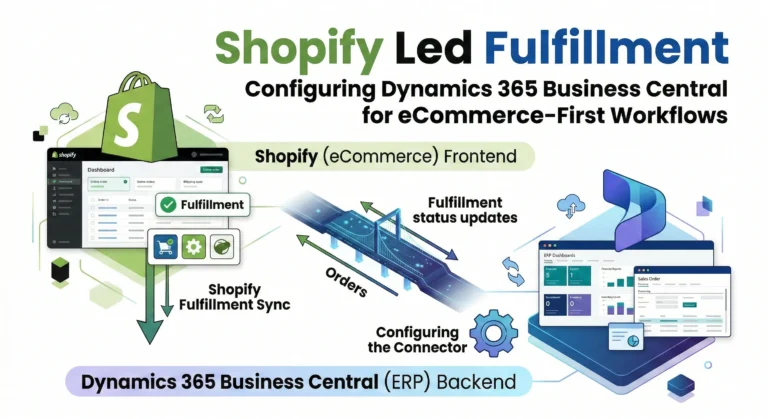
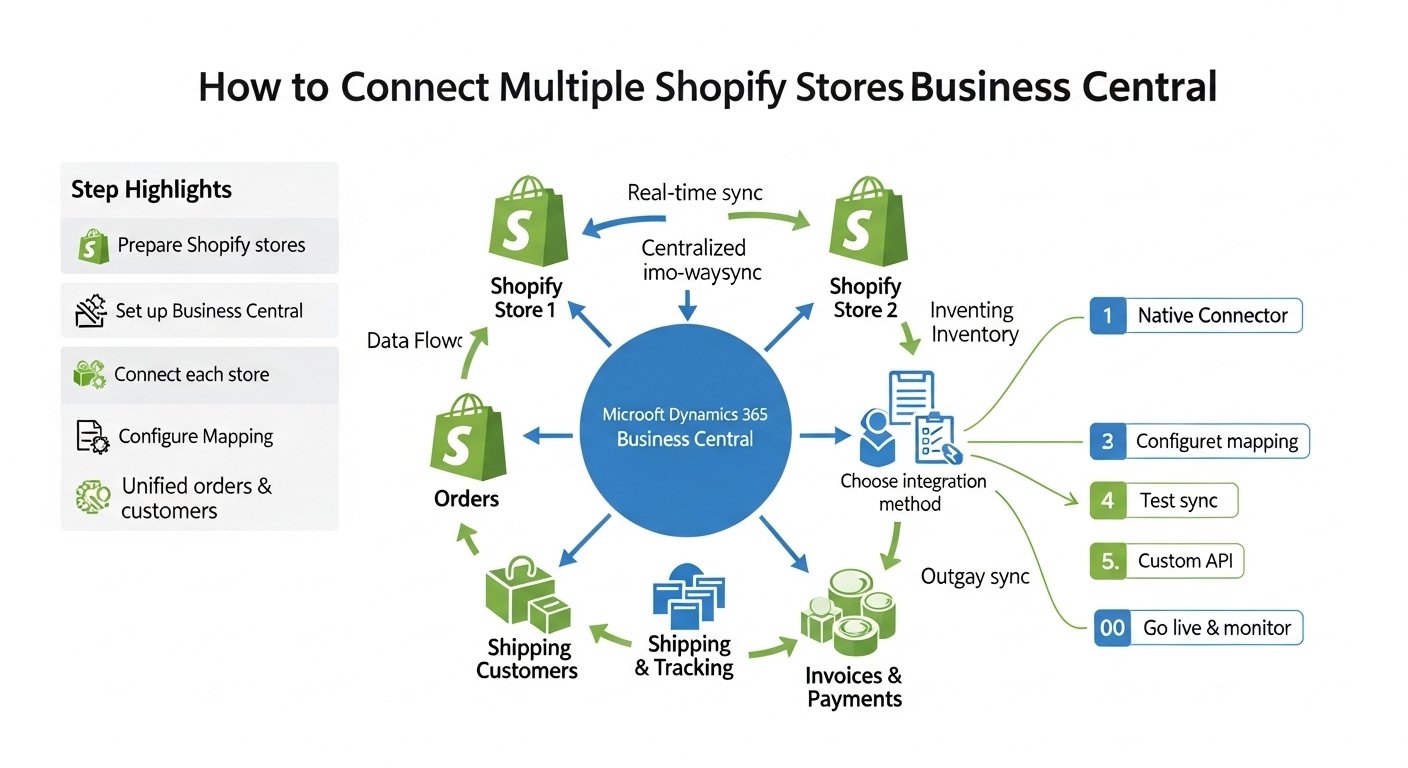
The integration works through APIs and connectors that connect multiple shopify stores to business central. These connectors act like bridges, sending data back and forth between systems. When a customer places an order on any Shopify store, the data is instantly sent to Business Central. Inventory updates in real time, and order status can be pushed back to Shopify. The same applies to customers, payments, and shipping details. In simple terms, both systems keep talking to each other automatically, so you don’t have to update anything manually.
Key Data You Can Sync Across Stores
When you connect multiple shopify stores to business central, it’s important to know what kind of data actually moves between systems. This helps you understand how much control you’ll have after integration. Here’s what typically gets synced:
- Products and variants
- Inventory levels
- Orders and order status
- Customers
- Shipping and tracking
- Invoices and payments
This full data flow ensures that all stores stay aligned without duplication or confusion.
Step-by-Step: Connect Multiple Shopify Stores to Business Central
To Connect multiple shopify stores to business central requires careful setup to avoid data issues later. It’s not just about linking accounts you need to structure your data, define rules, and test everything properly. Below is a detailed, practical breakdown of each step so you can set things up the right way from the start.
Step 1: Prepare Your Shopify Stores
Before integration, your Shopify stores must be clean and consistent to Connect Multiple Shopify Stores to Business Central. This step prevents sync errors and confusion later when data starts flowing into Business Central. Focus on standardizing everything across stores:
- Ensure all products have unique and consistent SKUs
- Match product variants (size, color, etc.) across stores
- Remove duplicate or inactive products
- Verify accurate inventory levels in each store
- Review tax settings and shipping configurations
- Confirm currency formats for each region
A well-prepared store setup makes the rest of the integration much smoother.
Step 2: Set Up Business Central
Now you need to prepare Business Central to act as the central system. Everything from Shopify will flow into this system, so proper configuration is critical. Set up the core structure carefully:
- Create items (products) with matching SKUs
- Define inventory locations or warehouses
- Set up customer templates for incoming orders
- Configure chart of accounts and posting groups
- Define tax rules and business posting settings
- Decide whether to use one company or multiple companies
This step ensures that all incoming data is recorded correctly without manual fixes.
Step 3: Choose Integration Method (Connector or Custom)
Your integration method will define how flexible and scalable your setup is. Choosing the wrong option can limit your operations later. Consider these key points when deciding:
- Use a native connector for simple, quick setup
- Choose third-party apps for more features and flexibility
- Go for custom API integration for complex workflows
- Check if the solution supports multiple stores
- Review real-time sync capabilities and limits
- Look for error handling and logging features
Taking time here helps you avoid switching systems later.
Step 4: Connect Each Shopify Store
Each Shopify store to Connect Multiple Shopify Stores to Business Central needs to be connected individually, even if they all sync into the same Business Central system. Follow these steps for each store connection:
- Generate API credentials from Shopify admin
- Add store connection inside your integration tool
- Authenticate and verify access permissions
- Assign a unique identifier or name to each store
- Confirm connection by testing basic data access
Clear labeling and proper setup help manage multiple stores easily.
Step 5: Configure Store Mapping
Mapping defines how each store behaves inside Business Central. This is where you control how data is processed and stored. Set clear rules for each store:
- Assign warehouse or inventory location per store
- Map customers to specific templates or groups
- Define pricing rules and currency handling
- Configure order processing workflows
- Set tax and shipping logic based on store region
- Decide how invoices and payments are recorded
Good mapping ensures smooth automation without manual corrections.
Step 6: Test Data Sync
Testing is where you catch problems before they affect real customers. Skipping this step often leads to major issues after going live. Run different test scenarios:
- Place test orders from each Shopify store
- Check if orders appear correctly in Business Central
- Verify inventory updates after each order
- Test customer creation and duplicate handling
- Simulate refunds, cancellations, and returns
- Review financial entries and invoice creation
Fix any mismatches before moving to the next step.
Step 7: Go Live and Monitor
Once everything is tested, you can go live but monitoring is still important in the early stage. Keep a close eye on system performance:
- Monitor sync logs for errors or delays
- Check daily order flow across all stores
- Review inventory updates regularly
- Validate financial reports for accuracy
- Set alerts for failed or delayed syncs
- Gradually increase automation as confidence grows
Ongoing monitoring ensures your system stays stable as your business grows.
Multi-Store Setup Options (Important for Decision Making)
Different businesses need different setups. Choosing the right structure depends on how your stores operate.
- Single Company, Multiple Stores: All stores connect to one Business Central company. This works well when inventory and finances are shared.
- Multiple Companies for Each Store: Each store has its own company in Business Central. This is useful when stores operate independently.
- Hybrid Setup (Shared + Separate Data): Some data like inventory is shared, while financials remain separate. This gives flexibility for growing businesses.
Common Challenges in Multi-Store Integration
Even though integration brings many benefits, there are a few challenges that businesses often face. Knowing them in advance helps you avoid problems later.
- Inventory conflicts across stores
- Duplicate customer records
- Currency and tax differences
- Order syncing delays
- Store-specific pricing
Most of these issues can be managed with proper setup and clear rules.
Best Practices for Smooth Multi-Store Sync
A well-planned setup makes a big difference. Instead of fixing issues later, it’s better to follow proven practices from the start. These simple steps can keep your system running smoothly:
- Use clear SKU structure
- Define store-wise rules
- Automate as much as possible
- Monitor sync logs regularly
- Start with one store, then scale
Following these tips helps avoid confusion and keeps operations stable.
Choosing the Right Integration Method
Not every business needs the same type of integration. Your choice depends on budget, complexity, and long-term goals.
- Native Connectors: These are built-in or official solutions. They are easy to set up and suitable for simple use cases.
- Third-Party Apps: These offer more flexibility and features. They are ideal for businesses with moderate complexity.
- Custom API Integration: This option gives full control but requires development work. It’s best for businesses with unique requirements.
Real-Life Use Case (Example)
Imagine a company running three Shopify stores one for the US, one for Europe, and one for wholesale customers. Each store has different pricing and currencies. To Connect multiple shopify stores to business central, the company manages inventory from one system. Orders from all regions flow into one dashboard, while financial reports stay accurate for each market. This setup helps the business process 30–40% more orders without increasing staff.
Cost Factors to Consider
The cost of integration depends on several factors. It’s not the same for every business, so understanding what affects pricing is important.
- Number of stores
- Complexity of setup
- Custom requirements
- Ongoing support
A simple setup may cost a few hundred dollars monthly, while advanced integrations can go higher depending on features.
Simplify Multi-Store Shopify Operations with Expert Help
Managing multiple Shopify stores doesn’t have to feel complicated. With the right setup, you can control everything from one place and avoid daily confusion. That’s where New Wiz Tech comes in. We help businesses connect multiple shopify Stores to business central in a way that actually works for their operations. From syncing inventory to managing orders and customers, our solutions reduce manual work and keep everything accurate. Whether you’re running two stores or ten, our team makes sure your system stays reliable, simple, and ready to grow with your business.
Conclusion
Connect multiple Shopify stores to Business Central gives you better control over your entire business. It reduces manual work, improves accuracy, and helps you manage growth without chaos. Whether you run stores for different regions, brands, or customer types, a proper integration keeps everything organized. The key is choosing the right setup, following best practices, and monitoring your system regularly. With the right approach, you can handle more orders, maintain accurate inventory, and make smarter decisions without feeling overwhelmed. Need help setting up or to connect multiple shopify stores to business central? Get clear guidance and avoid common setup mistakes Free Consultation Session