General Journal Batch: Customizing Approval Workflows in Dynamics 365
If you are trying to configure a General Journal Batch approval workflow in Dynamics 365, you might have hit a very common roadblock. We’ve all been there: you get a request from the finance controller to add a simple rule, and suddenly you are knee-deep in community forums trying to figure out why the system won’t cooperate.
Recently, there has been a massive discussion in the Dynamics community about adding custom condition filters. For instance, teams want workflows to trigger based on a specific Payment Method Code or the sum of total line amounts. Sounds straightforward, right? Unfortunately, the standard setup doesn’t make this easy. Let’s dig into why this happens and how you can actually solve it.
Table of Contents
- The Core Problem: Header vs. Line Architecture
- Why Payment Method Codes Won’t Trigger
- The Total Batch Amount Dilemma
- Practical Workarounds for Custom Workflow Filters
- 5 Frequently Asked Questions (FAQ)
The Core Problem: Header vs. Line Architecture
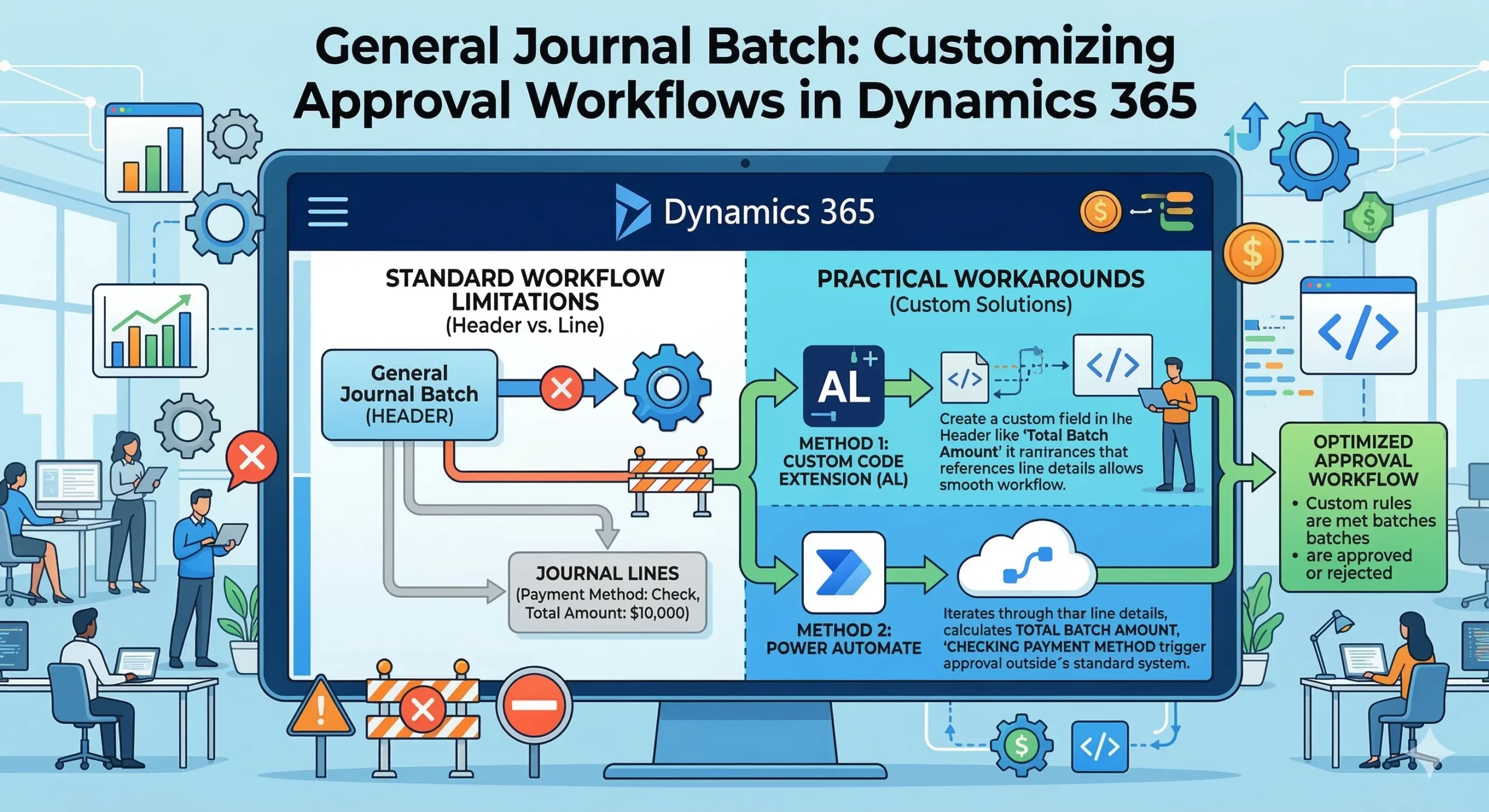
When you submit a batch for approval, standard workflows evaluate conditions at the Batch header level. Think of a batch header as an envelope. The envelope itself doesn’t inherently know the details of the letters (or lines) stuffed inside.
Standard workflows don’t look at the lines—where the actual meat of your financial data lives—natively. They only look at the high-level grouping. This architectural separation is the root cause of almost every frustration users face when setting up these approvals.
Why Payment Method Codes Won’t Trigger
Because the Payment Method Code is a line-level detail, the header workflow condition completely ignores it. You can’t just tell the standard workflow to “only approve if the payment method is Check” because the workflow is staring at the batch header, oblivious to the journal lines below it. It is a classic case of the system doing exactly what it was programmed to do, rather than what you actually need it to do.
The Total Batch Amount Dilemma
Similarly, users often want to establish a rule like: “If the total batch amount exceeds $10,000, require managerial approval.”
However, Total Batch Amount is not a standard header field. It is a calculated sum of the individual line amounts. Standard workflows simply cannot dynamically calculate and filter on this sum out-of-the-box. The header doesn’t store a hard-coded “Total Amount” field for the workflow to check against.
Practical Workarounds for Custom Workflow Filters
So, how do we fix this limitation? The community has zeroed in on two highly effective workarounds.
Method 1: Custom Code Extensions (AL)
The traditional way to bridge this gap is to have a developer write a custom AL extension. Your developer can create a custom field on the header that automatically calculates the total amount or flags if specific payment methods are present in the lines. Once that custom field is on the header, you can easily filter your standard workflow based on that new data.
Method 2: Power Automate
If you want to avoid heavy coding, Power Automate is your best friend. You can create a cloud flow that triggers exactly on a batch submission. The flow can then be instructed to iterate through the journal lines, check the Payment Method Code, or sum up the totals independently. Once the flow calculates the data, it handles the complex routing and approvals outside of the rigid standard workflow structure.
5 Frequently Asked Questions (FAQ)
1. Can I filter a General Journal Batch by Payment Method Code without code?
Out of the box, no. The standard workflow only reads header data. You will need either a Power Automate flow or a small AL extension to evaluate those line-level fields.
2. Why does Dynamics 365 evaluate at the header level?
It is a core architectural choice. Batches group multiple transactions together for efficiency. Approving the batch means approving the entire group, so the system naturally triggers the approval on the group (header) record rather than running hundreds of separate line approvals.
3. How do I calculate the Total Batch Amount for an approval condition?
You can create a custom flow in Power Automate that lists all journal lines associated with the batch, sums their amounts into a variable, and uses a condition block to check if the total exceeds your specific threshold.
4. Is Power Automate better than an AL extension for this?
It strictly depends on your team’s skillset. Power Automate is fantastic for low-code environments and complex routing. However, an AL extension keeps everything natively inside Dynamics 365, which can sometimes be more robust for high-volume environments.
5. Will Microsoft update the standard workflow to include line-level filters?
While the user community has requested this feature heavily over the years, there is no official roadmap to change the core header-vs-line workflow architecture for journals. Relying on custom header fields or Power Automate remains the accepted best practice.