
How to Integrate WooCommerce with Business Central
Table of Content
- Title
- How to Integrate WooCommerce with Business Central integration
- What Is WooCommerce Business Central Integration?
- Systems Involved and Their Roles
- Data Entities Synchronized
- Why Integrate WooCommerce with Business Central?
- Operational Challenges Without Integration
- Business Value of ERP Integration
- Key Features of WooCommerce Business Central Integration
- Integration Architecture & Technical Approach
- Step-by-Step: How to Integrate WooCommerce with Business Central
- Step 1: Business Requirements & Process Mapping
- Step 2: Environment & Access Setup
- Step 3: Data Mapping & Field Alignment
- Step 4: Integration Development & Configuration
- Step 5: Testing & Validation
- Step 6: Go-Live & Monitoring
- Common WooCommerce Business Central Integration Challenges
- Plugin Limitations and Connector Instability
- Data Conflicts Between Storefront and ERP
- Performance Issues with High Order Volume
- Upgrade Compatibility Risks
- Pricing & Cost Factors for WooCommerce Business Central Integration
- What Impacts Integration Cost?
- Cost vs Long-Term ROI
- Why Choose a Custom WooCommerce Business Central Integration Partner
- Final Thoughts
WooCommerce with Business Central integration helps automate orders, inventory, accounting, and fulfillment by connecting WooCommerce with Microsoft Dynamics 365 Business Central for scalable, ERP-driven eCommerce growth. Running WooCommerce without an ERP often leads to fragmented operations. Orders are processed manually, inventory is tracked across spreadsheets, and accounting teams struggle with delayed postings and reconciliation issues.
This is where Microsoft Dynamics 365 Business Central becomes essential. As a modern cloud ERP, Business Central centralizes accounting, warehouse management, tax rules, and financial control into a single system of record. When you integrate WooCommerce with Business Central, you replace disconnected plugins with structured ERP automation. In this article we are going to explain how to integrate WooCommerce with Business Central, covering both the technical architecture and the business value behind a scalable WooCommerce ERP integration.
What Is WooCommerce Business Central Integration?

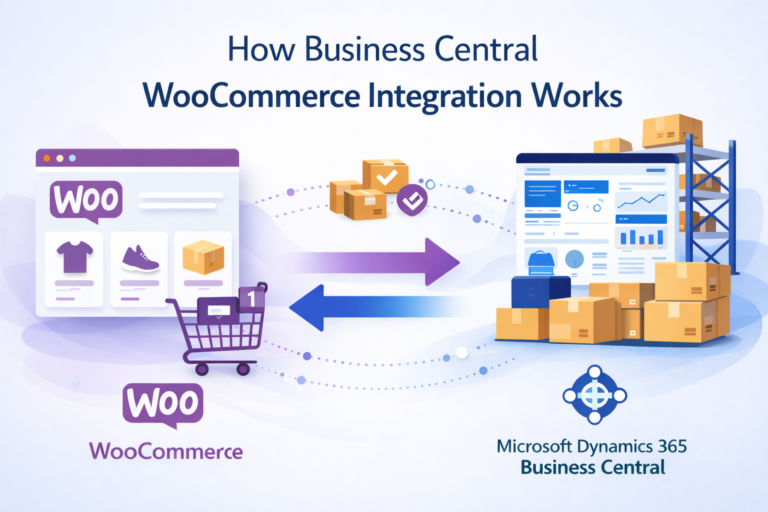
WooCommerce Business Central integration is the process of synchronizing WooCommerce with Business Central ERP to automate data flow between eCommerce and back-office operations. This ERP integration with WooCommerce ensures that orders, customers, inventory, pricing, and finance are consistently aligned across systems.
Systems Involved and Their Roles
- WooCommerce as the Storefront: WooCommerce handles the customer experience, including product listings, pricing display, checkout, and order placement. It focuses on usability, conversions, and marketing flexibility.
- Business Central as the System of Record: Business Central governs ERP logic such as accounting, general ledger posting, SKU management, warehouse management, tax rules, and fulfillment workflows. It ensures data accuracy and compliance.
Data Entities Synchronized
A custom WooCommerce Business Central integration synchronizes:
- Sales orders and order statuses
- Customers and account data
- Inventory quantities and SKUs
- Pricing rules and taxes
- Invoices, refunds, and credit memos
- Payments and financial postings
Why Integrate WooCommerce with Business Central?
WooCommerce with Business Central integration is critical for businesses that want to scale without increasing manual effort. A WooCommerce ERP integration eliminates operational bottlenecks and creates a single source of truth across sales and finance.

Operational Challenges Without Integration
- Manual Order Processing: Without automation, teams manually re-enter orders into accounting systems, increasing errors and processing time.
- Inventory Mismatches and Overselling: Disconnected inventory tracking causes stock inaccuracies, especially in multi-warehouse environments.
- Delayed Invoicing and Accounting Errors: Manual invoicing delays general ledger updates and increases reconciliation issues.
Business Value of ERP Integration
- Real-Time Operational Visibility: Real-time synchronization gives teams instant insight into orders, inventory, and fulfillment status.
- Centralized Financial Control: ERP-driven accounting ensures consistent posting, audit readiness, and compliance.
- Scalable Automation for Growth: A scalable WooCommerce ERP integration supports higher order volumes without operational strain.
Key Features of WooCommerce Business Central Integration
A robust WooCommerce with Business Central connector delivers end-to-end automation across operations.
Order Management Automation
- Automatic order sync from WooCommerce to Business Central
- ERP-driven invoicing and posting to the general ledger
- Clean handling of refunds, returns, and credit memos
Inventory & Warehouse Synchronization
- SKU-level inventory synchronization
- Multi-warehouse stock visibility
- Stock reservation to prevent overselling during peak traffic
Pricing, Tax & Currency Control
- ERP-controlled pricing logic
- Centralized tax rules
- Multi-currency handling for global selling
Customer & Account Synchronization
- Centralized customer records
- Duplicate prevention through data mapping
- Accurate billing and shipping alignment
Financial Accuracy & Compliance
- Automated financial postings
- Clean audit trails
- Accurate profit and cost reporting
ERP-Aligned Automation
- Elimination of fragile plugins
- Structured workflows driven by ERP logic
- Reliable fulfillment automation
Integration Architecture & Technical Approach
A successful Microsoft Dynamics 365 Business Central WooCommerce integration requires an enterprise-grade technical foundation.
APIs & Data Exchange
- REST API communication between WooCommerce and ERP
- OData endpoints for structured ERP data access
Security & Authentication
- OAuth 2.0 authentication
- Secure access control and encrypted transmission
Middleware Layer
- Middleware handles transformation and routing
- Retry logic, error handling, and logging
- Ensures upgrade safety and scalability
Sync Methods
- Real-time synchronization for orders and inventory
- Batch processing for large datasets like customers and SKUs
How to Integrate WooCommerce with Business Central
Step 1: Business Requirements & Process Mapping
- Identify all operational workflows, expected order volumes, inventory complexity, and automation goals to ensure the integration aligns with real business processes rather than assumptions.
- Define the system of record (source of truth) for each data entity orders, inventory, customers, pricing, and finance to prevent conflicts and data overwrites.
Step 2: Environment & Access Setup
- Configure WooCommerce REST API credentials with appropriate permissions to securely access orders, products, customers, and inventory data.
- Set up Business Central sandbox and production environments to allow safe development, testing, and controlled deployment without risking live operations.
Step 3: Data Mapping & Field Alignment
- Map all critical entities including orders, customers, SKUs, taxes, payments, shipping methods, and statuses between WooCommerce and Business Central.
- Handle custom fields, extensions, and ERP-specific configurations to ensure accurate data mapping that supports accounting, reporting, and fulfillment workflows.
Step 4: Integration Development & Configuration
- Build robust API connections between WooCommerce and Business Central that support real-time and batch-based synchronization as required.
- Implement middleware logic to manage data transformation, validation rules, and workflow orchestration between systems.
- Configure retry mechanisms, error handling, and logging to ensure failed transactions can recover without manual intervention.
Step 5: Testing & Validation
- Perform functional testing across all workflows, including order placement, inventory updates, invoicing, refunds, and customer synchronization.
- Validate data accuracy through reconciliation checks between WooCommerce and Business Central to confirm financial and inventory consistency.
- Conduct load and performance testing to ensure the integration can handle peak traffic, large order volumes, and seasonal sales spikes.
Step 6: Go-Live & Monitoring
- Execute a controlled production rollout with phased activation to minimize risk and ensure stability during launch.
- Enable continuous monitoring, alerts, and performance tracking to proactively identify issues and optimize integration efficiency over time.
Common WooCommerce Business Central Integration Challenges
Plugin Limitations and Connector Instability
Generic WooCommerce Business Central connectors are typically designed for basic use cases and lack ERP-grade logic. They struggle with complex workflows such as multi-warehouse inventory, B2B pricing, and advanced tax rules. These plugins often become unstable, leading to sync failures and data loss.
Data Conflicts Between Storefront and ERP
Without clearly defined data ownership, WooCommerce and Business Central may overwrite each other’s updates. This results in inconsistent inventory levels, pricing mismatches, and duplicate or missing customer records. Poor data mapping and lack of validation logic further increase the risk of accounting and reporting errors.
Performance Issues with High Order Volume
Synchronous processing forces systems to wait for each transaction to complete before moving forward. During peak sales or promotions, this causes slow order processing, delayed inventory updates, and checkout issues. Without asynchronous queues and background jobs, integrations fail to scale with growing transaction loads.
Upgrade Compatibility Risks
Many connectors are not built with long-term ERP compatibility in mind and rely on fragile platform dependencies. When WooCommerce, plugins, or Business Central are upgraded, these integrations often break unexpectedly. This leads to emergency fixes, downtime, and increased maintenance costs instead of predictable, upgrade-safe growth.
Pricing & Cost Factors for WooCommerce Business Central Integration
What Impacts Integration Cost?
- Business complexity
- Number of SKUs, customers, and warehouses
- Custom workflows and automation depth
Cost vs Long-Term ROI
- Reduced manual labor
- Lower error-related losses
- Future scalability savings
Why Choose a Custom WooCommerce Business Central Integration Partner
A custom WooCommerce with Business Central integration is fundamentally different from a plug-and-play connector. True ERP integration requires deep expertise in accounting, fulfillment, data mapping, and operational logic. You can also learn about “How Business Central WooCommerce Integration Streamlines the Process for Elkotex“.
Choosing an experienced partner ensures:
- ERP-first architecture
- Long-term stability
- Upgrade-safe design
- Strategic scalability instead of short-term fixes
Final Thoughts
WooCommerce Business Central integration is not just a technical enhancement it is a strategic growth foundation. By unifying WooCommerce with a cloud ERP, businesses gain automation, accuracy, and control across orders, inventory, finance, and fulfillment. If you are planning how to integrate WooCommerce with Business Central for long-term scalability, now is the time to act.
To build a future-ready and scalable WooCommerce ERP integration that grows with your business.