
Shopify Order Management System for Business Central: How It Works and How to Choose
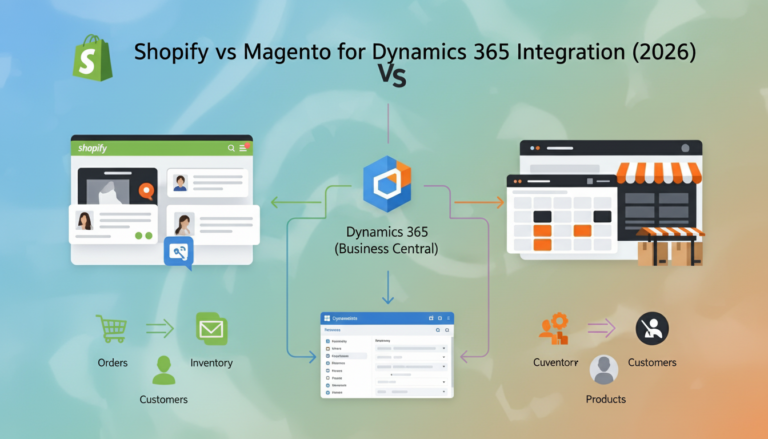
A Shopify order management system is the software layer that captures every Shopify order, moves it into your back office, and keeps fulfillment, inventory, invoices, and payments in step with the rest of the business. For teams that run Microsoft Dynamics 365 Business Central, the usual route is a connector that syncs orders, products, stock, and shipments between the two platforms. Microsoft offers a native Shopify Connector, and specialist partners build custom connectors when a business needs more control.
I have seen plenty of growing merchants start with Shopify’s own reports and a spreadsheet, then discover that order data, stock counts, and invoices live in three different places. If you are weighing the options, the Business Central Shopify integration options page compares the native connector and a custom build side by side.
This article covers both sides of that decision. I start with what an order management system needs to do, then walk through how the sync behaves in practice, based on Microsoft’s documentation. I also explain where the native connector runs out of room and where a custom approach makes sense. If you want a wider view of how these connectors fit the rest of your commerce stack, the Business Central ecommerce integrations hub lists the platforms covered.
If you need help with implementation, mapping, and support after launch, our Microsoft Dynamics 365 Business Central services cover integration, custom AL development, and ongoing support. Still, the right first step is an honest look at your order volume, your store count, and how many people touch an order between checkout and cash.
What a Shopify Order Management System Needs to Do
Shopify is excellent at taking orders. It handles the storefront, the checkout, payments, and the first layer of fulfillment. What it does not do on its own is act as your accounting system, your inventory ledger, or your ERP. A Shopify order management system closes that gap by taking each order from the storefront and placing it into the processes your business runs on.
A useful system does five things well. It imports orders reliably, so nothing is missed or duplicated. It creates the right business documents, such as sales orders or sales invoices, with the correct customer, tax, and shipping details. It keeps stock levels accurate across every location you sell from. It sends fulfillment and tracking information back to the storefront so customers stay informed. And it records refunds and returns so that finance can reconcile what the store says happened with what the bank shows.
The difference between a good system and a weak one usually shows up in the exceptions. A missing customer record, a shipping method that isn’t mapped, or a refund that arrives before its original order all create work for someone. The strongest systems make those exceptions visible, explain why they happened, and let the team resolve them without guessing.
Why Shopify Alone Stops Being Enough
Many businesses run Shopify comfortably for their first few years. The trouble starts when the store becomes a channel among others. Maybe you add a wholesale desk, a second storefront for another market, or a point-of-sale setup in a physical shop. Each new channel adds order volume, and each channel tends to record things slightly differently.
At that point, manual processes start to fail in predictable ways. Someone copies orders into the ERP each morning, and an afternoon rush leaves a gap. Stock is counted in the warehouse, but Shopify still shows the old quantity, so the team oversells. Accountants rebuild invoices from exported files, and every correction requires a second round of checks. None of these problems is dramatic on its own. Together, they consume the hours your team should spend growing the business.
This is the point where a Shopify order management system stops being a convenience and becomes infrastructure. The question changes from “can we export our orders?” to “which system is the source of truth for each piece of data, and how do the two stay aligned?”
How the Native Microsoft Connector Works
Microsoft’s Shopify Connector is built into Business Central online. According to Microsoft’s Shopify Connector setup guide, you connect a store by installing the Dynamics 365 Business Central app in the Shopify admin, then creating a Shopify Shop record in Business Central and entering the store’s admin URL. You turn on the Enabled toggle, accept the terms, and install the app when prompted. You repeat this for each store you want to connect.
The user doing the setup needs the Shopify Connector admin permission set, which Microsoft calls SHPFY-ADMIN. The connector is preinstalled for new sign-ups and trials. Microsoft’s FAQ also clarifies the scope: the connector is available only for Business Central online, not on-premises deployments, and it doesn’t work with other Dynamics 365 applications such as Sales or Supply Chain Management. Your organization needs both a Business Central license and a Shopify license to use it.
One detail matters for long-term reliability. The connector uses expiring offline access tokens and refreshes them automatically before they expire. A refresh token stays valid for up to 90 days without a successful refresh. If the connector can’t refresh within that window, someone must reconnect the shop from the Shopify Shop Card. Build a reminder into your operations calendar so a quiet connector doesn’t become a silent failure.
Microsoft also documents the Shopify API versions that power the connector. The connector uses Shopify’s GraphQL Admin API, and Shopify releases a new version every three months and supports each one for 12 months. Business Central updates adopt new Shopify versions in major releases. If your environment falls behind the supported version, API calls can be blocked, so keep Business Central upgraded on schedule.
How Order Sync Works in Practice
Order sync is the heart of the integration, and it’s where the details matter most. Microsoft’s synchronize and fulfill sales orders guidance describes a two-step import. First, the connector imports order headers into a holding table when they aren’t archived and were created or modified since the last sync. Then it processes those records, requesting order lines, shipping and fulfillment details, transactions, and returns where configured.
You control how much happens automatically. The Auto Create Sales Documents toggle creates a sales order from each imported order that requires fulfillment. Fulfilled orders, such as those containing only a gift card, can become sales invoices if you turn on Create Invoices From Orders. The Auto Sync Orders setting sends real-time notifications for new orders and runs the import through the job queue. Microsoft notes that this option doesn’t accept filters, so businesses that need to split traffic by channel should use scheduled jobs with filters instead.
Filters are powerful. You can import only fully paid orders, orders from a particular channel, or orders carrying specific tags. A common pattern is to run one job for your online store that creates customers from Shopify, and another for point-of-sale orders that uses a fixed default customer. Keep both jobs in the same job queue category so they don’t conflict.
Customer handling deserves early attention. The connector chooses a customer based on rules you set, including a default customer, matching by email or phone, or matching by billing information. When it can’t find a match and automatic creation is off, the order waits for someone to assign a customer manually. For B2B orders, the connector maps companies and locations to customers, which is where most setup questions arise.
Finally, remember that orders don’t freeze in Shopify after they reach Business Central. If someone edits a processed order, the connector detects the change and shows an error that asks you to update the processed document or force a sync. Teams that edit orders frequently should agree on a rule for when that’s allowed, because the cleanest data comes from fixing the order at the source before it’s processed.
Invoices, Shipments, and Tracking Back to Shopify
Sync that only moves data inward leaves customers in the dark. The connector can push shipments back to Shopify. When a posted sales shipment has the right Shopify references, you can sync it, and the fulfillment appears against the order in Shopify. If the shipment includes a shipping agent and tracking code, that information goes to Shopify and into the shipping confirmation email, unless you turn off that notification.
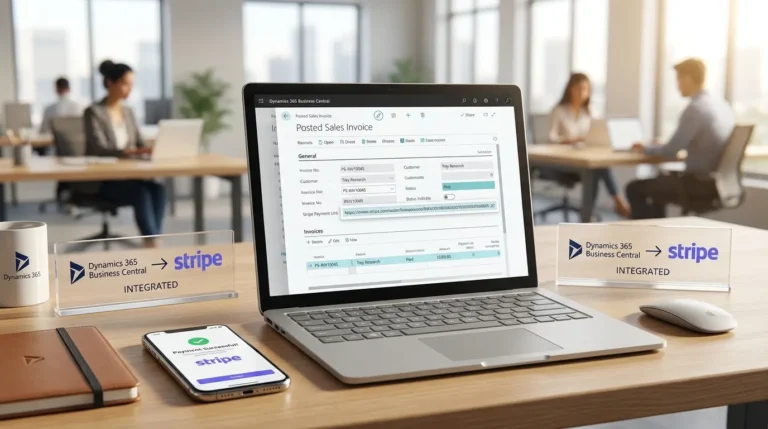
Invoices can travel the other direction too. Microsoft documents a feature that exports posted sales invoices to Shopify so buyers can see their invoices from their Shopify accounts. You enable it per shop with the Posted Invoice Sync toggle, and you must configure payment terms mapping. The connector creates a draft order with header and line details, then converts it to an order. Taxes are exported as custom products because Shopify’s API doesn’t currently support the tax line object in that flow, and orders are marked as tax exempt to prevent Shopify from recalculating them.
That last detail is worth understanding before you rely on the feature. The purpose is to make the invoice visible to the buyer, not to re-run the tax engine inside Shopify. If your business needs tax reporting that matches exactly, test how your invoices appear for each customer type before you go live.
Inventory and Locations: Keeping Stock Honest
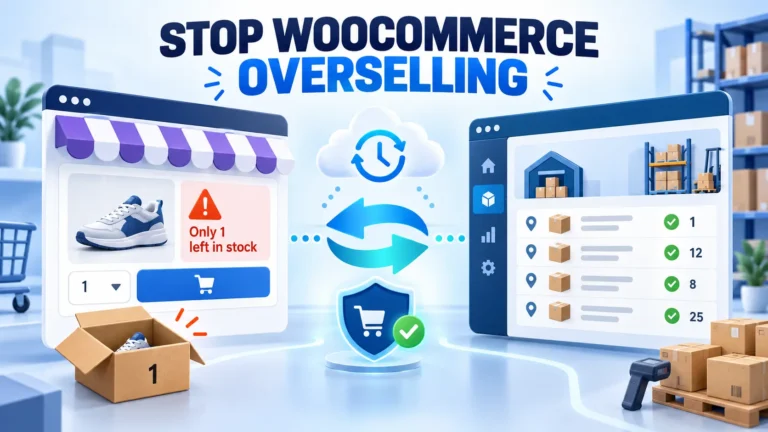
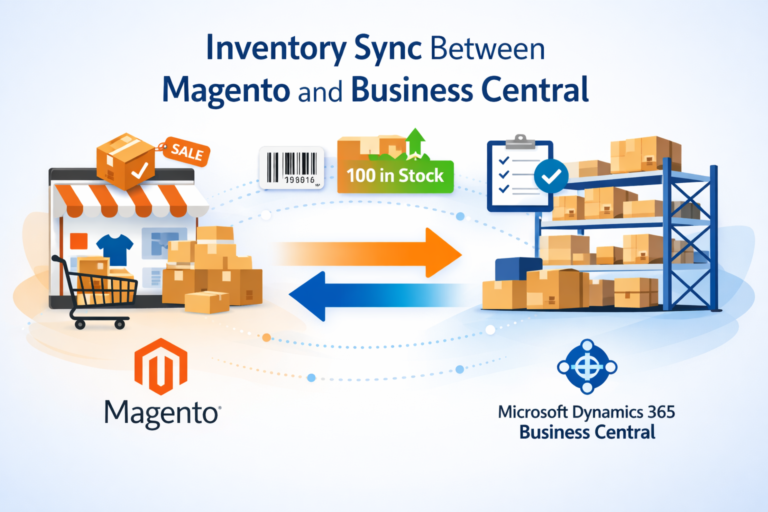
Inventory is where overselling costs real money, so the design of your stock sync deserves careful thought. Microsoft describes Business Central as the system of record for inventory. When you receive goods, complete production, or transfer stock between warehouses, the connector updates Shopify. The quantity it sends is a calculated available balance, not raw on-hand stock, which means outstanding sales orders and incoming supply can both influence the number a customer sees.
The setup starts with location mapping. You import your Shopify locations, then decide which Business Central locations feed each one. A location filter lets you include inventory from specific warehouses only, such as EAST|WEST, so a stockroom you don’t want to sell from stays out of the storefront. You also choose a stock calculation method. Microsoft lists two standard methods, Projected Available Balance at Today and Free Inventory not reserved, and the connector can be extended with more.
Two practical rules help. First, when you add a new location in Shopify, you must also add inventory records for it, because the connector won’t create them for existing products. Second, bundles need special handling. Shopify bundle apps can calculate availability from components and block API updates, so Microsoft suggests mapping bundles to non-inventory items in Business Central, which are excluded from inventory sync.
For frequency, Microsoft recommends running the job queue every 15 to 30 minutes to keep Shopify stock current without manual effort. That balance works for most stores. Very high-volume merchants may need to test whether a shorter interval causes API pressure before committing to it.
For a clear picture of how Shopify itself handles stock across sites, the Shopify Help Center on locations explains that each location tracks inventory separately and that order routing rules can assign online orders based on availability and proximity. Your Business Central mapping should reflect that same structure so the two systems tell the same story.
Payments and Reconciliation
Payments close the loop. Orders that are paid in Shopify need a clear path into your accounting, and gift cards add an extra layer. Microsoft explains that you must set a Sold Gift Card Account before syncing gift card sales, because sold cards synchronize with orders as G/L account lines. Applied gift cards import as payment transactions rather than reducing the invoice amount, so reconciliation has to account for them separately.
Payment terms follow a similar pattern. The payment mapping defines the term code and due date when you import orders, and it governs exported invoices as well. Microsoft notes that the connector keeps fixed-date or X-days due dates from the Shopify order regardless of mapping, while terms such as due on receipt are calculated from the mapped payment term.
A reliable reconciliation habit is to compare the Shopify order total, the Business Central sales document total, and the bank deposit for each payout period. The Order Total FactBox in the Shopify Orders page shows totals from both systems side by side, which makes that comparison faster. Build the check into your month-end routine rather than waiting for an accountant to find a mismatch later.
For stores that also run WooCommerce or other channels alongside Shopify, the WooCommerce integration with Business Central page explains how a second commerce platform can feed the same ERP. Keeping every channel on one set of item, customer, and payment rules prevents the reporting drift that appears when each channel runs its own setup.
Choosing Between a Native Connector and a Custom One
The native connector is a strong choice for standard workflows. It is maintained by Microsoft, it covers the core flows, and it gives you a documented, supported path. If your processes fit its settings, you can often configure it well with a short project.
A custom connector makes sense when your business logic goes beyond those settings. Examples include pricing rules that depend on customer segments, multi-step approvals before an order becomes a sales document, store-specific validations, or data flows the native connector doesn’t cover. New Wiz Tech’s own page describes this split: it implements Microsoft’s connector for standard requirements and deploys its own connector when a business needs customization, validations, mappings, or automation.
Use a simple test to decide. List your five most painful order processes. If the native connector handles them with settings, choose it. If one or two need code, weigh the cost of custom development against the cost of manual work every day for the life of the business. Ask potential partners to show how they would handle an edited order, a failed sync, and a refund on a fulfilled order. Their answers will tell you more than any feature list.
Also check the platform boundary. The native connector works with Business Central online only, so businesses on on-premises deployments need to plan a different route. Confirm your edition and environment before you commit to a timeline.
Common Mistakes to Avoid
Several mistakes come up again and again. Testing in production is the most expensive. Microsoft recommends a sandbox, and it warns that running a Shopify sandbox against Business Central production can create or modify items, customers, and sales documents that are difficult to undo. If you must test that way, disable the auto-create and update settings first.
Archived orders are another trap. The connector doesn’t import orders that Shopify has archived. Microsoft suggests turning off the automatic archive option in Shopify’s order processing settings so all orders reach Business Central, or using the Unarchive Orders action when needed.
Time zones cause quiet errors. Shopify sends timestamps in ISO 8601 format, and Business Central converts them to dates. If your company information doesn’t have a valid time zone on the post code record, the document date can shift. Check this once during setup.
Tax settings need care too. Imported orders carry tax information, but Business Central recalculates tax when it creates the sales document. In the US and Canada, if “include sales tax in product price” is enabled in Shopify, the connector can’t convert the order into a sales document because Business Central doesn’t support backward sales tax calculation. Resolve that setting before you test.
Multi-line orders need one more check. Microsoft notes that orders with multiple lines of the same product may not fulfill automatically, typically after a Buy X get Y discount applied to identical products. Mark those orders as fulfilled in Shopify Admin, or create a process to catch them.
Key Takeaways
- A Shopify order management system moves orders, stock, invoices, and shipments between the storefront and your ERP, so the two never drift apart.
- Microsoft’s native Shopify Connector works with Business Central online and requires the right license and permission set.
- Order sync is controllable: filters, auto-create settings, customer matching rules, and returns handling all shape the result.
- Inventory sync sends calculated available stock, and Microsoft recommends a job queue interval of 15 to 30 minutes.
- Invoices and shipments can flow back to Shopify, but the tax and fulfillment behavior needs testing before launch.
- Choose a native connector for standard flows and a custom connector when your business logic needs more than settings can deliver.
Frequently Asked Questions
What is a Shopify order management system?
It is the software layer that imports Shopify orders into your back office and keeps orders, inventory, invoices, shipments, and payments aligned with your ERP. For Business Central users, it usually takes the form of a connector that syncs data between the two platforms.
What are the two Business Central Shopify integration options?
The first is Microsoft’s native Shopify Connector, which is built into Business Central online and maintained by Microsoft. The second is a custom connector, which a partner builds when your processes need deeper customization than the native connector provides.
Is Microsoft’s Business Central Shopify connector free?
The connector is included with eligible Business Central online environments, but your organization needs both a Business Central license and a Shopify license to use it. Implementation, configuration, and ongoing support are separate costs that vary by project.
Does the Shopify connector work with on-premises Business Central?
No. Microsoft states the connector is available only for Business Central online, and it doesn’t work with other Dynamics 365 applications such as Sales or Supply Chain Management.
Can one Business Central company connect to multiple Shopify stores?
Yes. You create a separate Shopify Shop record for each store, and each connects with its own settings. Some partner packages cover a fixed number of stores, so confirm the scope before you buy.
How often does inventory sync to Shopify?
Microsoft recommends running the inventory sync through the job queue every 15 to 30 minutes. The interval you choose should balance freshness against API load, and high-volume stores should test it before setting it permanently.
Can invoices go from Business Central back to Shopify?
Yes. You can export posted sales invoices to Shopify with the Posted Invoice Sync setting and a configured payment terms mapping. Taxes export as custom products, so test how invoices appear for each customer type before relying on them.
What happens if someone edits a Shopify order after it reaches Business Central?
The connector detects the change, marks the order, and shows an error. You can update the processed document to match Shopify or force a sync from the Shopify Order page. Agree on a rule for order edits so changes happen before processing where possible.
How do returns and refunds sync?
You choose a processing type on the Shopify Shop Card. Import Only brings in the information for manual credit memos, while Auto Create Sales Document creates credit memos or return orders automatically. Refunds can only create documents once the original order has been processed.
What should I test before going live?
Test in a sandbox first, covering products, inventory, customers, pricing, orders, shipments, and invoices end to end. Check tax behavior, time zones, gift cards, and any multi-line orders with discounts. Confirm your refresh token process and who receives failure alerts.
Conclusion
A Shopify order management system pays off when every order, stock change, invoice, and shipment follows one reliable path into your ERP. Start by mapping your current process, decide which parts the native connector can handle, and test the exceptions before you launch. If you want help comparing the native and custom options against your own workflow, contact our team to talk through your setup, without any obligation to commit to a particular path.