Shopify Integration Guide: Connecting Your Store to ERP, Accounting and CRM
If you have run a Shopify store for a while, you have probably noticed that the store itself is rarely the hard part. The hard part is everything around it. Orders have to reach your accounting system. Stock counts have to match what is actually on the shelf. Someone has to push tracking numbers back to customers, update prices, and make sure the sales team knows who bought what.
For a while, a person on your team does all of that by hand. I have watched this happen with a lot of ecommerce teams, and the pattern is almost always the same. The copy and paste routine works when orders are light. Then the business grows, a second sales channel opens, a wholesale customer asks for special pricing, and suddenly the spreadsheet that held everything together starts falling apart.
That is the moment a proper Shopify integration starts paying for itself. In this guide I will walk you through what Shopify integration really means, which data moves where, how to connect Shopify to an ERP, accounting software and a CRM, what the connector options are, and what a clean implementation looks like from first call to go-live. Most of my examples come from Business Central Shopify integration projects, because Microsoft Dynamics 365 Business Central is the ERP I work with most. The principles, though, hold up whether you are connecting Shopify to Business Central, NetSuite, QuickBooks, Xero, HubSpot or Salesforce.
What Is Shopify Integration?
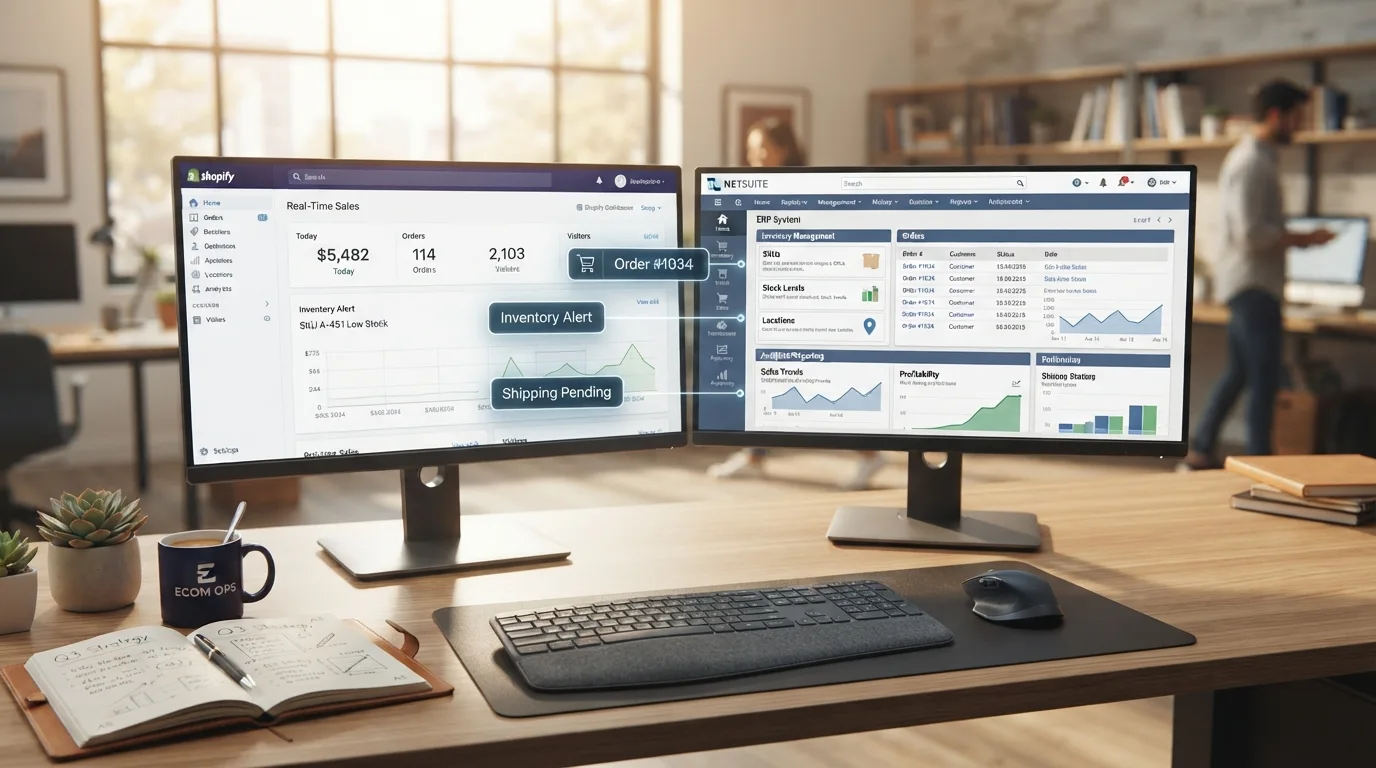
Shopify integration is the process of connecting your Shopify store to the other systems your business runs on, such as an ERP, accounting software, a CRM, or a warehouse tool, so that orders, products, inventory, prices, customers and shipments move between them automatically instead of being typed in by hand.
That is the short answer. When people ask me what is Shopify integration in practical terms, I usually describe it as three jobs happening at once:
- Moving data. An order placed in Shopify shows up in your back office without anyone retyping it. A stock change in your warehouse shows up in Shopify without anyone logging in to edit it.
- Deciding who owns what. Every piece of data needs one home. Your ERP usually owns items, prices and stock. Shopify usually owns the order as the customer placed it. A good integration respects those boundaries.
- Triggering the next step. Once data lands, something should happen. A sales order gets created, a shipment gets posted, an invoice goes out, a contact record gets updated in the CRM.
If a Shopify integration only does the first job, it is really just a data pipe. The value comes from the second and third jobs, because that is where automated workflows replace the manual checks your team does today.
Why Manual Data Entry Stops Working
Manual processes are not always wrong. The trouble starts when volume and complexity grow at the same time.
Here is what I typically see break first:
- Data silos. Shopify knows about orders, your accounting software knows about money, your CRM knows about relationships, and none of them talk to each other. Every report turns into a merging exercise.
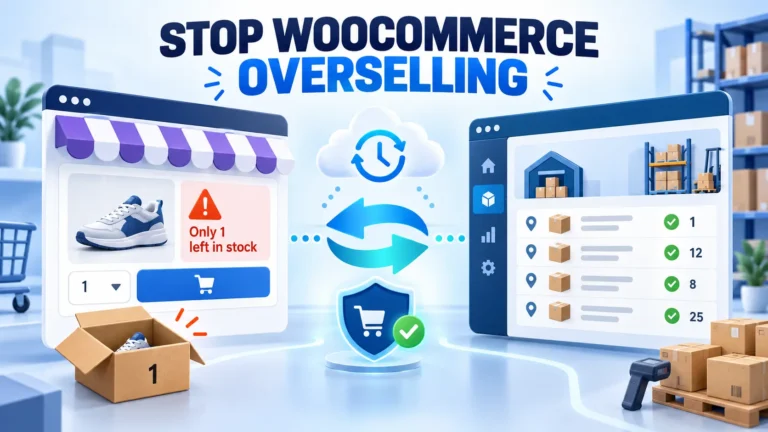
- Overselling. Stock is sold online that was already committed to a wholesale order or sitting damaged in the warehouse. Inventory in Shopify drifts away from reality, and customer service pays the price.
- Slow fulfillment. Orders wait in a queue until someone re-enters them. Shipping slips by a day, and customers notice.
- Month-end pain. Finance spends days reconciling payouts, refunds and fees against orders because the numbers were never connected at the source.
None of these problems are dramatic on their own. What makes manual data entry expensive is that the cost grows quietly with every new order, product and channel. A Shopify integration removes that growth curve, because adding volume no longer means adding typing.
How Shopify Integration Works: The Data That Moves
The easiest way to understand any Shopify integration is to look at each type of data and ask two questions: where does it start, and where does it need to end up?
Orders
Orders start in Shopify. A customer checks out, and the Shopify integration pulls that order, with its lines, discounts, shipping charges, taxes and payment details, into your ERP or accounting system. In Business Central, for example, the connector can create a sales order automatically for orders that still need fulfillment. That one step removes most of the re-keying work I described above.
Customers and companies
Customer records usually travel from Shopify into the back office, because that is where new buyers first appear. In B2B setups, your Shopify integration may also handle company records, so a wholesale buyer and their business account stay linked.
Products and variants
Products are the opposite. In most businesses I work with, the ERP is the master for items, variants, descriptions, weights and categories. The Shopify integration pushes that information to your storefront, so you maintain product data in one place instead of two.
Prices
Prices follow the same direction as products. Your standard prices, price lists, and customer-specific or B2B pricing live in the ERP and sync out to Shopify. This matters a lot once you sell to both consumers and businesses.
Inventory
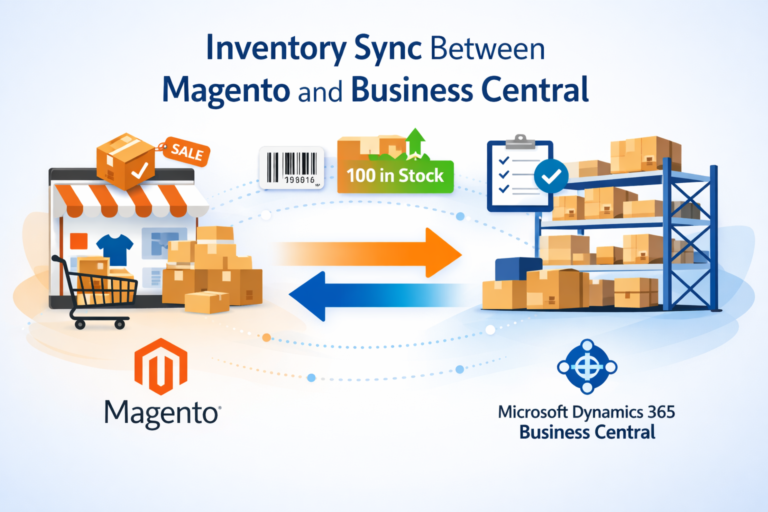
Inventory flows from the ERP to Shopify, ideally by location. If you have more than one warehouse, you want Shopify to show what each location can actually ship, not one blended number.
Shipments, tracking and invoices
Once an order ships from your warehouse, the Shopify integration sends fulfillment status and tracking details back to Shopify, which can then notify the customer. Invoices can be created on the ERP side and made available to customers as well.
Microsoft’s own documentation for the Shopify Connector for Business Central groups the sync into items, prices and taxes, inventory, customers and companies, and orders including fulfillment.
What two-way sync really means
You will hear the phrase two-way sync a lot. It is often misunderstood. Two-way sync does not mean every field flows in both directions. If it did, two systems would keep overwriting each other. What it really means is that data moves both ways across the integration as a whole: orders and customers come in, products, prices, stock and shipments go out. Each field still has a single owner. When I review a Shopify integration that keeps “losing” data, the root cause is nearly always a field that two systems both think they own.
Connecting Shopify to an ERP
An ERP is usually the most valuable system to connect, because it holds the operational truth: what you own, what it costs, where it is, and what you owe. When Shopify is wired directly into the ERP, the store becomes a sales channel of the business instead of a separate island.
The main things I look for in an ERP-level Shopify integration are:
- Orders converted into proper sales documents, not just dumped into a holding table
- Inventory published by location, with clear rules for safety stock
- Item and variant mapping that handles your real catalog, including bundles and kits if you sell them
- Mapping for shipping methods, payment methods, and tax setup, so documents post cleanly
- Error handling that tells someone when an order fails to import, instead of failing silently
This is also where store count starts to matter. Many brands run more than one Shopify storefront, for example a separate store per country or a dedicated wholesale store. If that sounds like you, it is worth reading up on how to connect multiple Shopify stores to Business Central before you commit to a design, because the decision affects how you map locations, currencies and customers.
Shopify Integration With Accounting Software
Not every business needs a full ERP on day one. A lot of stores start with Shopify integration with accounting software like QuickBooks or Xero, and for a smaller operation that is perfectly reasonable.
A typical Shopify integration with accounting software focuses on money rather than operations:
- Daily or per-order sales summaries posted to the general ledger
- Payouts, fees and refunds recorded so the bank reconciliation lines up
- Tax collected mapped to the right accounts
- Basic customer and product records, when needed for invoicing
Where accounting-only setups start to strain is inventory and fulfillment. Accounting tools are built to record transactions, not to run a warehouse, manage multiple locations, or handle complex pricing. When I see a team keeping a separate inventory spreadsheet next to their accounting software, that is usually a sign they have outgrown it.
At that point, many growing businesses move to an ERP. If you are currently on QuickBooks and thinking about that step, it helps to understand what it takes to migrate to Business Central from QuickBooks, because the timing of your migration and the timing of your Shopify integration project are closely linked. I generally suggest planning them together rather than building an integration you will replace a year later.
Shopify Integration With a CRM
The third piece in the title of this guide is the CRM. A Shopify integration with a CRM answers a different question from an ERP or accounting integration. Instead of “did we record the sale correctly?” it asks “what do we know about this customer, and what should we do next?”
When Shopify connects to a CRM such as HubSpot or Salesforce, the usual flows are:
- New Shopify customers created or matched as contacts
- Order history attached to the contact, so sales and support see purchase behavior
- Abandoned checkouts and repeat purchase signals used for marketing automation
- B2B accounts linked to company records, so account managers see what each business buys
Most CRMs offer their own Shopify app. HubSpot, for example, explains how its HubSpot and Shopify data sync connects store data to the CRM and adds tracking to the storefront. In my experience, the CRM side is rarely the hard part. The hard part is keeping customer identity consistent across Shopify, the CRM and the ERP, so you do not end up with three slightly different versions of the same buyer.
My rule of thumb: let the ERP or accounting system stay the master for financial customer data such as payment terms and credit limits, and let the CRM own relationship data such as lifecycle stage, notes and campaigns. Shopify sits in the middle as the place where new buyers first show up.
Types of Shopify Integration
Once you know what needs to connect, the next question is how to build your Shopify integration. There are three common approaches, and they are not rivals. Many businesses end up using more than one.
Native connectors
A native connector is built specifically for one pair of systems, such as Shopify and Business Central. It comes with the data model already mapped, so setup is mostly configuration rather than development. This is the fastest route when your processes are fairly standard.
Middleware or iPaaS
Middleware platforms sit between systems and route data through workflows you configure. They are flexible and good at connecting many apps at once. The tradeoff is another platform to license, monitor and maintain, and complex ERP logic can become hard to manage in a generic tool.
Custom API integration
A custom Shopify integration is built directly against the Shopify API and your other system’s API. It gives you full control over logic, timing and error handling. It also means you own the code, testing and upkeep. If you are weighing these options for an ERP, this breakdown of the API vs connector approach for Business Central integration covers the tradeoffs in more depth than I can fit here.
Microsoft Shopify Connector vs a Custom Shopify Connector
For Business Central users, this is the most common decision I help with, so it deserves its own section.
The Microsoft Shopify connector
Microsoft ships its own Shopify connector for Business Central. According to Microsoft’s documentation, the Shopify Connector app is preinstalled for new sign-ups and trials, and existing customers can install it from Microsoft’s marketplace. It supports connecting one or more Shopify stores, and it covers the core sync areas: items, prices and taxes, inventory, customers and companies, and orders with fulfillment.
For a lot of businesses with standard processes, the Microsoft Shopify connector is a solid starting point. It is maintained by Microsoft, it follows Business Central updates, and it handles the everyday flows well.
A custom Shopify connector
A custom Shopify connector makes sense when your processes do not fit the standard model. Some examples I come across often:
- Special order routing rules, such as sending certain products to a 3PL and others to your own warehouse
- Unusual pricing structures that go beyond standard price lists
- Custom fields that need to travel between systems
- Approval steps or holds before an order becomes a sales document
- Data that the standard connector does not cover in the way your team needs
At New Wiz Tech, we deliver Business Central Shopify integration both ways: configuring the Microsoft connector for standard needs, or building on our own connector when the requirements are unique. The right answer depends on your processes.
A simple way to decide
Ask yourself: if you described your order-to-cash process to a stranger, would it sound like most other stores? If yes, start with the native connector. If you keep saying “except for” and “but in our case,” a custom Shopify connector or extension will probably save you pain later.
Shopify Integration NetSuite vs Business Central
People researching Shopify integration NetSuite options often ask me how that compares with Business Central. I will keep this fair, because both are capable ERPs.
The Shopify integration questions are actually the same for both platforms:
- Is there a maintained connector, or will you rely on a third-party app or custom build?
- How are orders converted into sales documents, and how are failures surfaced?
- Can inventory sync by location?
- How is B2B pricing handled?
- Who supports the integration when either platform releases an update?
The bigger differences tend to sit in the ERP itself: licensing model, the partner ecosystem around you, how well it fits your industry, and whether your team already lives in Microsoft tools. If your company runs on Microsoft 365, Business Central often feels like a natural fit. If you are already deep in NetSuite, it usually makes more sense to integrate what you have than to switch for the sake of the integration. Pick the ERP for the business, then design the Shopify integration around it.
B2B and B2C Ecommerce on Shopify
More and more of the brands I work with sell to both consumers and businesses. That changes what the integration needs to do.
For B2C ecommerce, the priorities are speed and accuracy: fast order import, real-time inventory sync, and quick fulfillment updates. For B2B, the list grows. Wholesale buyers expect company accounts, negotiated prices, payment terms, purchase order references, and sometimes different products or minimum quantities.
Shopify supports this natively. Its Shopify B2B features let you register buyers as companies and tailor pricing, products, payment and shipping methods per company. Shopify’s help center lists B2B as available on the Basic, Grow, Advanced and Shopify Plus plans, but not on the Starter or Retail plans, so check your plan before you design anything. Shopify Plus remains the plan many larger merchants choose for heavier B2B and multi-store operations.
On the Shopify integration side, B2B means your ERP must push the right price to the right company, and orders coming back must carry the company, terms and references your finance team needs. I always map B2B and B2C scenarios separately during discovery, even when they run through the same store, because the edge cases are different.
What Shopify Integration Implementation Looks Like
This is the part most guides skip, and it is where projects succeed or fail. Here is the process I recommend, broken into stages.
1. Discovery
Before anyone touches settings, map your current process. Which system owns each data type? How many stores, locations and currencies? Do you sell B2B, B2C or both? What are the exceptions your team handles by hand today? The answers decide whether a standard connector is enough.
2. Connect
Link the Shopify store to the ERP, accounting system or CRM, and confirm permissions. In Business Central, connecting uses a secure authorization flow, and Microsoft notes that the connector refreshes its access tokens automatically, but a refresh token stays valid for up to 90 days without a successful refresh. If it lapses, you reconnect. It is a small detail, but I have seen it surprise teams who connected a test store and forgot about it.
3. Map and configure
This is the heart of the project. You map locations, shipping methods, payment methods, customer matching rules, item and variant handling, tax settings and discounts. Every mapping decision should go back to the ownership rules from discovery.
4. Sandbox testing
Test everything in a safe environment first. Place real-looking orders, including discounts, partial shipments, refunds and B2B orders, and follow each one end to end.
One warning straight from Microsoft’s documentation: connecting a Shopify development store to a Business Central production environment is not recommended, because the connector can create or change items and customers and create sales documents such as orders and invoices that are difficult to undo. Keep test stores pointed at sandbox companies. When you do export products to a live store for the first time, a handy setting lets you create products as drafts so buyers do not see them until you are ready.
5. Go-live
Pick a quiet period, freeze product and price changes for a short window, run the first syncs while watching closely, and have someone check the first batch of imported orders by hand.
6. Ongoing support
A Shopify integration is not a one-time project. Shopify releases API changes, your ERP gets updates, and your business adds products, stores and rules. Someone needs to watch sync errors, update mappings, and test after each major update. That is why I always tell clients to budget for ongoing support from the start, either in-house or through Business Central support services from a partner who knows both platforms.
How to Choose the Best Shopify Integration
There is no single best Shopify integration for every business. The best Shopify integration is the one that fits your processes, your systems and your team’s ability to maintain it. These are the questions I use to narrow it down:
- What is your system of record? Start from the ERP or accounting software you trust, then pick a Shopify integration built for it.
- How standard is your process? Standard processes favor native connectors. Unusual ones favor custom work.
- How many stores and locations do you have, or plan to have? Multi-store support is much easier to design in than to bolt on.
- Do you sell B2B? If so, confirm the Shopify integration handles company accounts, price lists and payment terms.
- How are errors handled? Ask to see what happens when an order fails. If nobody can show you, that is a red flag.
- Who maintains it? Every option needs an owner after go-live.
- What does the total cost look like? Include licenses, implementation, testing time and support, not only the subscription fee.
When to Bring in Shopify Integration Services
You can set up some integrations yourself, especially simple app-to-app connections. For ERP and accounting work, I usually recommend professional Shopify integration services when:
- You run more than one store or warehouse
- You sell both B2B and B2C
- Your finance team needs clean posting into the general ledger
- You are migrating ERPs at the same time
- Nobody on your team has the time to own testing and mapping
A good partner should ask a lot of questions before quoting, run sandbox testing with your real scenarios, and stay with you after go-live. If a provider promises a full ERP integration with no discovery and no testing phase, I would be cautious.
Frequently Asked Questions
What is Shopify integration?
Shopify integration is the connection between your Shopify store and other business systems such as an ERP, accounting software or a CRM. It moves orders, products, inventory, prices, customers and shipments between systems automatically, so your team stops re-entering data by hand.
Why do growing stores need a Shopify integration?
As order volume and sales channels grow, manual data entry becomes slow and error-prone. A Shopify integration keeps stock accurate, speeds up fulfillment, reduces mistakes, and gives finance and sales teams the same numbers.
What data can a Shopify integration sync?
Most Shopify integration setups sync orders, customers, products, variants, prices, inventory, shipments and tracking, and often invoices. Orders and customers usually flow into the back office, while products, prices and stock usually flow out to Shopify.
What is two-way sync in a Shopify integration?
Two-way sync means data moves in both directions across the Shopify integration. Each field still has one owner, so systems do not overwrite each other. Orders come into the ERP, and products, prices, inventory and shipment updates go back to Shopify.
Is the Microsoft Shopify connector enough for Business Central?
For many businesses with standard processes, yes. It covers items, prices, inventory, customers, companies and orders. Businesses with unusual routing, pricing or custom fields often need a custom Shopify connector or an extension on top.
What is the best Shopify integration for accounting software?
It depends on your accounting system and how complex your operations are. Smaller stores often do well with a direct accounting app for QuickBooks or Xero. Once inventory, multiple locations or B2B pricing come into play, an ERP integration is usually a better fit.
Can I connect Shopify to a CRM and an ERP at the same time?
Yes. Many businesses connect Shopify to both. The key is agreeing which system owns each customer field, so the CRM, the ERP and Shopify do not end up with conflicting versions of the same buyer.
Does Shopify support B2B ecommerce?
Yes. Shopify offers native B2B features that let you set up company accounts with custom pricing, products, payment terms and shipping options. Shopify lists B2B on the Basic, Grow, Advanced and Shopify Plus plans, not on Starter or Retail.
How long does a Shopify integration take to implement?
It depends on scope. A standard connector with one store can move quickly, while multi-store, B2B or custom logic takes longer. Discovery, mapping, sandbox testing and a planned go-live are the stages that decide the real timeline.
Do I need ongoing support after my Shopify integration goes live?
Yes. Shopify and ERP platforms change regularly, and your business adds products, stores and rules over time. Ongoing support covers error monitoring, mapping updates and testing after major releases, which keeps the integration reliable.
Final Thoughts
A Shopify integration is not really about technology. It is about giving your team their time back and giving every department the same version of the truth.
If I had to boil this guide down to one piece of advice, it would be this: decide who owns each piece of data before you choose a tool. Once ownership is clear, choosing between a native connector, middleware and a custom build becomes much easier, and your Shopify integration will hold up as you grow.