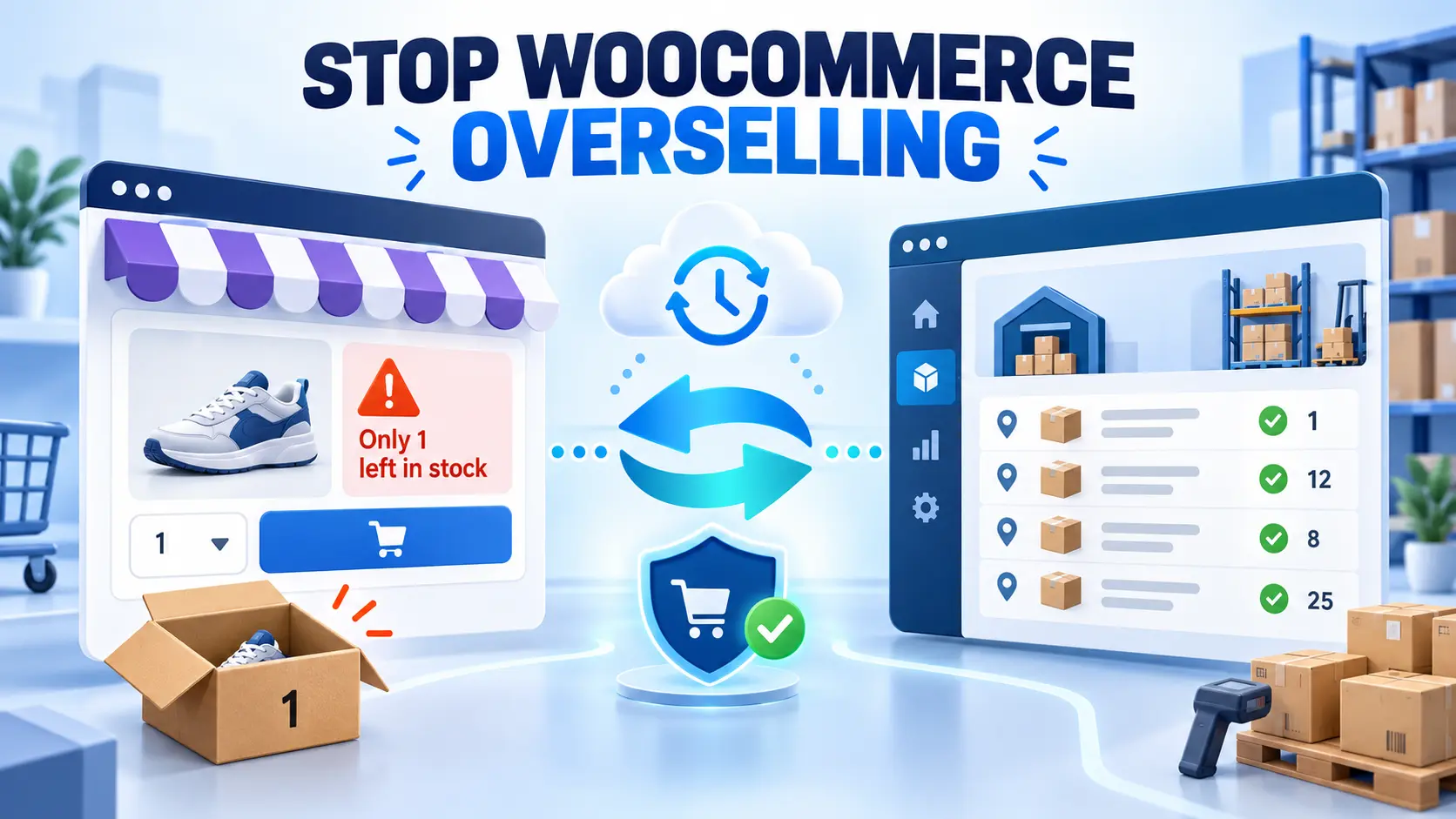
How to Stop Overselling Inventory in WooCommerce
WooCommerce Inventory Management
How Can I Stop Overselling Inventory on My WooCommerce Store?
To stop overselling inventory in WooCommerce, enable stock management, enter accurate quantities for every product and variation, disable backorders, configure pending-payment stock holds, and test how stock is reduced during checkout. If Microsoft Dynamics 365 Business Central also manages your inventory, connect the two systems so WooCommerce receives updated available inventory after Business Central demand is considered.
What does overselling inventory in WooCommerce mean?
Overselling happens when customers are allowed to order more units than your business can fulfil. For example, WooCommerce may display five units as available while Business Central shows that three units are already required by telephone or wholesale sales orders. The web store accepts five more units, but only two can actually be supplied.
This problem is not always caused by an incorrect physical stock count. It can also happen when WooCommerce knows the quantity on hand but does not know about demand recorded elsewhere.
Quantity on hand is not always available inventory
Microsoft explains that Business Central's quantity on hand is based on posted item ledger entries, while projected availability considers scheduled receipts and demand such as sales orders and outbound transfers. Business Central can also show availability by location and variant. This distinction matters when determining how many units a WooCommerce store should be allowed to sell.
Read Microsoft's explanation of item availability in Business Central.
Why does WooCommerce oversell products?
The most common causes are configuration errors, delayed updates, and disconnected systems.
- Stock management is disabled: WooCommerce is not tracking product quantities.
- Backorders are allowed: Customers can continue purchasing when the quantity reaches zero.
- Variation stock is incomplete: A parent product may be configured while individual sizes or colours have inaccurate quantities.
- Pending payments hold stock: Inventory can appear unavailable or become available at the wrong time when payment and scheduled-task behaviour is misunderstood.
- Manual adjustments are delayed: Warehouse staff update Business Central, but WooCommerce still displays the old quantity.
- Orders exist outside WooCommerce: B2B, telephone, marketplace, or physical-store orders consume inventory that WooCommerce cannot see.
- Several stores share stock: Each store may display the complete quantity even though all stores sell from the same warehouse.
- An integration failed: An API, scheduler, mapping, or authentication error prevented the newest quantity from reaching the store.
Why should you fix WooCommerce overselling?
An oversold order creates more than an inventory discrepancy. Your team must contact the customer, explain the problem, change or cancel the order, issue a refund, and correct records in both systems. The customer may also have received an advertising promise or delivery date that you can no longer honour.
Customer impact
Cancellations, delayed delivery, substitutions, and reduced trust.
Operational impact
Extra support, reconciliation, order correction, and warehouse work.
Commercial impact
Refund costs, wasted advertising spend, and lost repeat purchases.
How to stop overselling inventory using WooCommerce's built-in settings
If WooCommerce is your only source of sales and stock information, begin with its native inventory controls.
1. Enable global stock management
- Open WooCommerce > Settings > Products > Inventory.
- Enable stock management.
- Enable low-stock and out-of-stock notifications.
- Enter suitable low-stock and out-of-stock thresholds.
2. Configure Hold Stock carefully
The Hold Stock (minutes) setting controls how long stock is held for orders with the Pending payment status. After the time expires, WooCommerce can cancel the unpaid order and release the stock. It does not apply to orders with the On hold status, and it should not be described as a general cart reservation feature.
Review the official WooCommerce product and inventory settings.
3. Configure inventory for each product
- Edit the product.
- Open Product data > Inventory.
- Enable Track stock quantity for this product.
- Enter the correct quantity.
- Set Allow backorders? to Do not allow when you do not want customers to purchase unavailable stock.
- Set a product-specific low-stock threshold if required.
- Use Sold individually only when a customer should be limited to one unit per order.
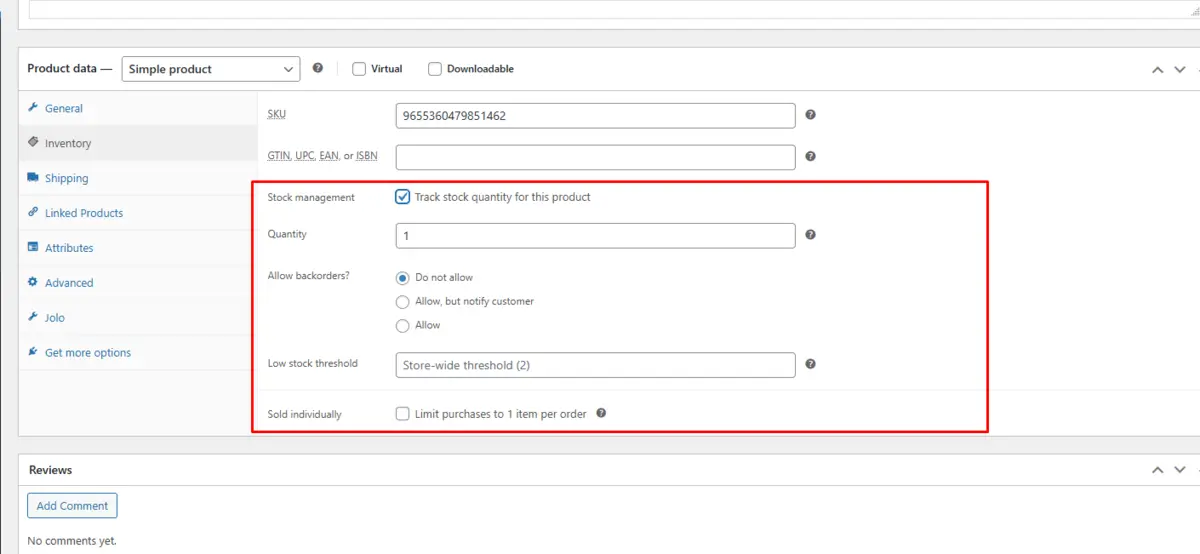
Important: “Sold individually” does not prevent overselling by itself. It limits each order to one unit, while stock management controls the total quantity available across orders.
4. Manage variable-product inventory separately
For products with sizes, colours, or other variations, decide whether inventory belongs to the parent product or to each individual variation. If each variation represents different physical stock, enter and test its quantity separately. Otherwise, one variation may continue selling after its real stock has been exhausted.
5. Test the complete stock lifecycle
Use a staging store to place controlled orders and verify what happens when an order is pending payment, paid, cancelled, refunded, or failed. Confirm that the product quantity decreases and returns at the expected stages. Also test the last available unit with two separate browser sessions.
Why WooCommerce settings may not be enough with Business Central
WooCommerce can only make a selling decision using the inventory information it currently holds. It does not automatically know about Business Central sales orders, purchase receipts, transfers, warehouse locations, item variants, B2B orders, or manual adjustments.
Consider two WooCommerce stores connected to one Business Central company:
- Store A sells inventory from Business Central Location A.
- Store B is allowed to sell the combined available inventory from Locations A and B.
Copying one physical quantity into both stores would be unsafe. Each store needs a separately calculated available quantity based on its configured Business Central location allocation.
What happens when Business Central and WooCommerce have no connector?
Without an integration, employees must repeatedly transfer information between the systems:
- Check inventory and demand in Business Central.
- Calculate the quantity that each WooCommerce store may sell.
- Update simple products and individual variations in WooCommerce.
- Open every new WooCommerce order.
- Find or create the customer in Business Central.
- Create the sales order and enter its products, quantities, prices, taxes, shipping, campaigns, and discounts.
- Correct mistakes and recheck available inventory.
- Update WooCommerce again.
How much time does manual WooCommerce order entry consume?
Based on New Wiz Tech's implementation experience, manually entering a WooCommerce order with around 10 items typically takes 5–8 minutes. During campaigns, orders with multiple promotions or discounts can take 12–13 minutes.
| Orders per day | Standard 10-item orders | Campaign/discount orders |
|---|---|---|
| 10 | 50–80 minutes | 120–130 minutes |
| 25 | 2 hr 5 min–3 hr 20 min | 5 hr–5 hr 25 min |
| 50 | 4 hr 10 min–6 hr 40 min | 10 hr–10 hr 50 min |
These estimates cover order entry only. They exclude inventory updates, reconciliation, customer communication, and error correction.
How a Business Central WooCommerce connector reduces overselling risk
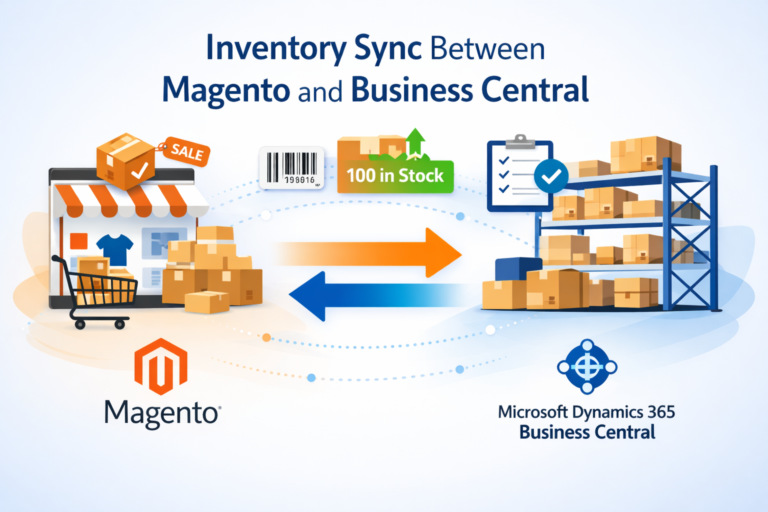
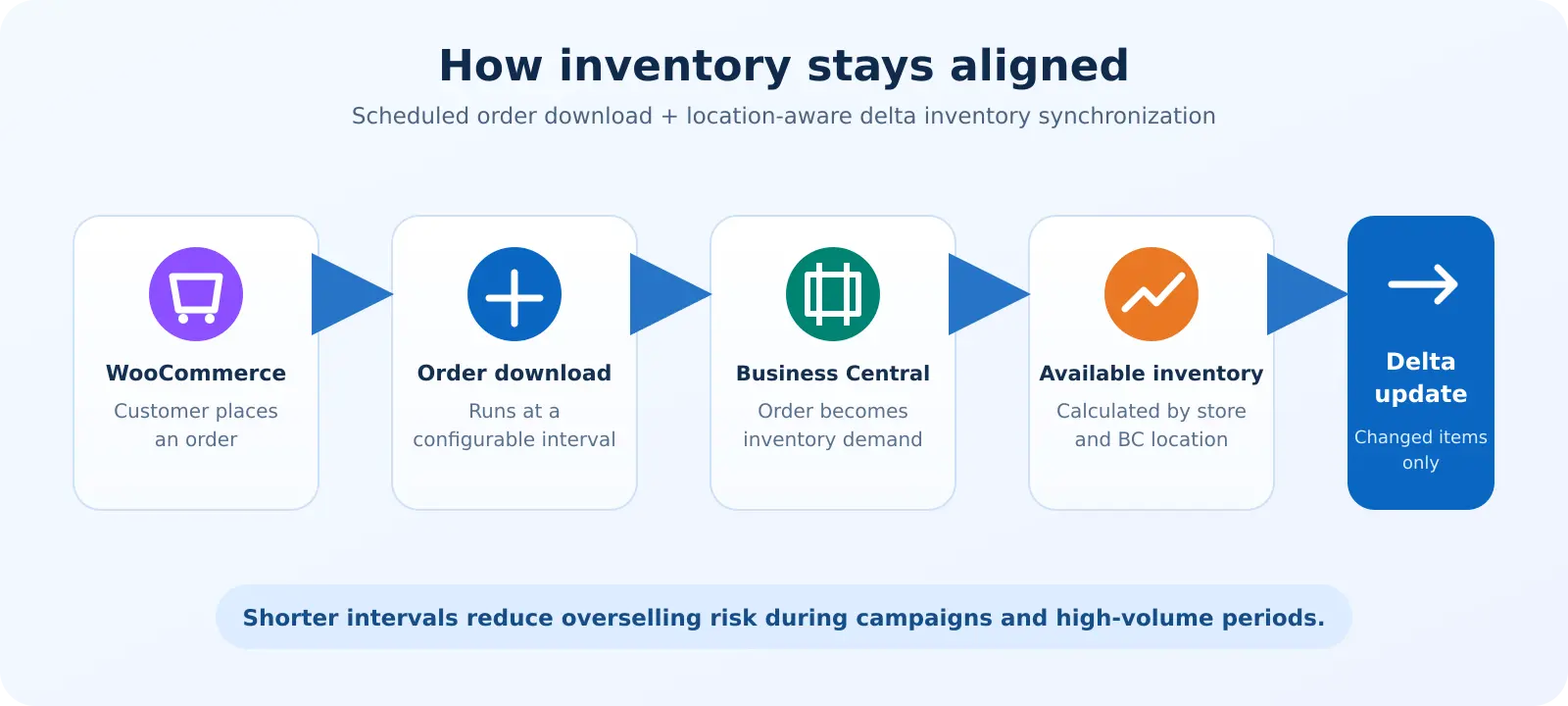
A connector removes repeated manual transfers and allows Business Central to act as the operational inventory source. The New Wiz Tech Business Central WooCommerce Connector follows a configurable, automated cycle:
- WooCommerce orders are downloaded automatically at a configurable interval.
- The order is created in Business Central and becomes inventory demand.
- Business Central available inventory is calculated after considering demand.
- Store and location rules determine how much each WooCommerce store may sell.
- Delta synchronization updates only items whose availability changed during the interval.
Store and location allocation is configurable
One store can use Location A, while another can use combined inventory from Locations A and B. The connector sends a separately calculated quantity to each configured WooCommerce website instead of copying the same quantity everywhere.
Product variations are synchronized separately
Each WooCommerce variation can be mapped to a Business Central item or item variant. When a size or colour changes, its corresponding available inventory can be included in the delta update.
Delta updates reduce unnecessary API traffic
The connector does not resend every item during every scheduled run. It processes inventory records that changed during the configured time span, reducing unnecessary API calls and processing.
Does the connector guarantee zero overselling?
No scheduled integration can honestly guarantee that overselling will never occur. A short interval exists between an order being placed, becoming Business Central demand, and the revised quantity returning to WooCommerce. The connector currently does not apply an additional safety-stock buffer. During campaigns or high-volume periods, use shorter synchronization intervals together with correctly configured WooCommerce stock management and disabled backorders.
WooCommerce inventory solution comparison
| Capability | WooCommerce only | BC + manual updates | BC WooCommerce Connector |
|---|---|---|---|
| Track WooCommerce stock | Yes | Yes | Yes |
| Consider Business Central demand | No | Manually | Automatically |
| Store/location allocation | No | Manual calculation | Configurable |
| Variation inventory | Configured in WooCommerce | Manual updates | Mapped and synchronized |
| WooCommerce order creation in BC | No | 5–13 minutes per order | Scheduled automatic download |
| Update changed inventory only | Not applicable | No | Delta synchronization |
| Error visibility | WooCommerce logs only | Manual checking | Activity and API logs |
Connect WooCommerce inventory with Business Central
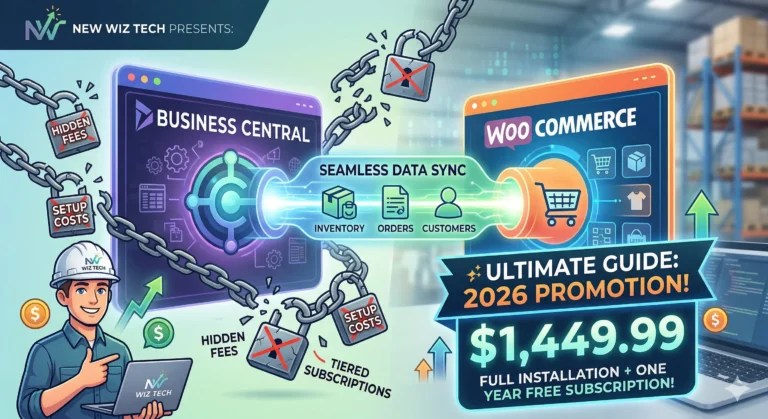
New Wiz Tech provides the Business Central .app extension and can install and configure it when the customer provides authorized Business Central access. The implementation includes mappings, scheduled synchronization, testing, training, and agreed support.
Explore the Business Central WooCommerce Connector
Compare Business Central eCommerce integrations or book a free consultation.
Frequently asked questions
Can WooCommerce prevent overselling?
WooCommerce can prevent basic overselling when stock management is enabled, quantities are accurate, and backorders are disabled. If other systems or stores consume the same inventory, those quantities must also be synchronized.
Should I disable backorders in WooCommerce?
Disable backorders when customers should only purchase inventory that is currently available. Keep them enabled only when your business can intentionally fulfil products after stock reaches zero.
What does Hold Stock mean in WooCommerce?
Hold Stock defines how long WooCommerce reserves inventory for an order in Pending payment status. When the time expires, the unpaid order can be cancelled and its stock released. It does not apply to On hold orders.
Does WooCommerce reserve inventory when a product is added to the cart?
WooCommerce's standard Hold Stock setting should not be treated as a general add-to-cart reservation. It applies to pending-payment orders. Stores that require cart-level reservation need a separately evaluated solution.
Can WooCommerce variations have separate inventory?
Yes. Variations such as individual sizes or colours can manage separate quantities. Each variation must be configured and tested correctly when it represents distinct physical inventory.
Why is WooCommerce stock different from Business Central inventory?
The systems may have different update times or definitions. WooCommerce may hold an old quantity, while Business Central includes sales demand, transfers, location allocations, or manual inventory adjustments that have not yet been synchronized.
Can different WooCommerce stores use different Business Central locations?
Yes, with the New Wiz Tech connector. Location allocation is configurable. One store can use one Business Central location while another uses a combination of selected locations.
Is Business Central WooCommerce inventory synchronization real time?
The connector uses configurable scheduled intervals rather than claiming guaranteed real-time synchronization. Shorter intervals can be configured for campaigns and periods with higher order volume.
Does every scheduled run update every product?
No. Delta synchronization processes inventory records that changed during the configured interval, helping reduce unnecessary API calls and processing.
Does the connector synchronize variable-product stock?
Yes. A WooCommerce variation can be mapped to a Business Central item or variant so its available inventory is synchronized separately.
How quickly are WooCommerce orders created in Business Central?
Orders are downloaded automatically according to the configured schedule. Once created in Business Central, the order becomes demand that affects the available-inventory calculation.
Does the connector guarantee that overselling is impossible?
No. It reduces overselling risk by automating order and inventory updates, but scheduled systems have a short interval between events. Correct WooCommerce settings, suitable schedules, testing, and monitoring remain necessary.
How is the Business Central WooCommerce Connector installed?
New Wiz Tech provides a Business Central .app extension. The customer can install it, or New Wiz Tech can install and configure it when authorized Business Central access is provided.